

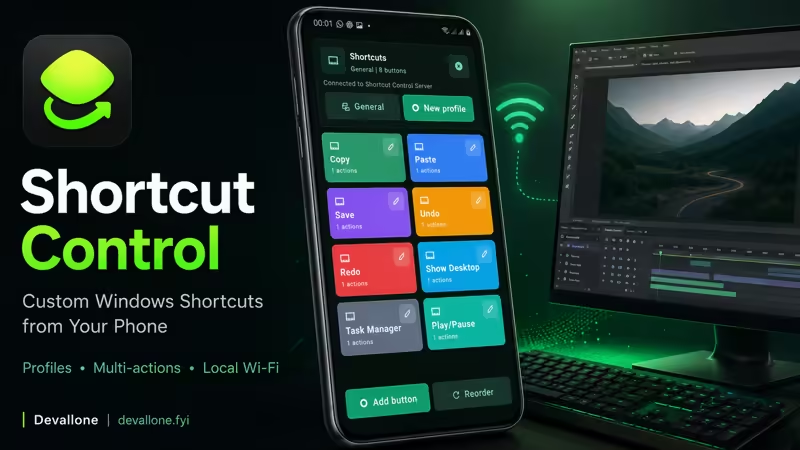
Shortcut Control

Create custom Windows shortcut buttons and control your PC by Wi-Fi.

App Screenshots

About This App

Shortcut Control turns your Android phone or tablet into a customizable shortcut control panel for your Windows PC.

Create your own shortcut buttons, organize them into profiles, connect to Shortcut Control Server on Windows, and run repeated PC actions from your Android device over your local Wi-Fi or LAN network.

Whether you work with office tools, design software, editing apps, development tools, teaching material, or daily productivity tasks, Shortcut Control helps you access your favorite Windows shortcuts faster and more comfortably.

Build your own control panel, tap a button, and execute the command on your PC.

KEY FEATURES

Custom Shortcut Buttons
Create buttons for common actions such as Copy, Paste, Save, Undo, Redo, Show Desktop, Task Manager, and your own custom commands.

Shortcut Profiles
Organize your buttons into different profiles for work, school, design, editing, development, productivity, or personal workflows.

Multi-Action Buttons
Add multiple actions inside one button to build shortcut sequences and step-by-step workflows.

Multiple Action Types
Create actions for keyboard shortcuts, typed text, media keys, website links, Windows paths, and delays.

Keyboard Shortcut Builder
Choose modifier keys such as Ctrl, Shift, Alt, and Win, then select the key you want to send to your Windows PC.

Button Customization
Customize button colors, edit shortcuts, delete buttons, and reorder your controls to match your workflow.

Local Wi-Fi / LAN Control
Shortcut Control works through your local network. Your Android device and Windows PC must be connected to the same Wi-Fi or LAN.

Easy Connection Methods
Connect to your PC using automatic discovery, QR code scanning, or manual IP address entry.

No Account Required
Use the app without creating an account or signing in.

Privacy-Friendly Design
Commands are sent between your Android device and your Windows PC through your local network. Camera permission is used only for scanning the server QR code.

Multi-Language Support
Shortcut Control supports multiple languages and RTL layout for Arabic.

HOW IT WORKS

  1. Install Shortcut Control Server on your Windows PC.
  2. Open Shortcut Control on your Android phone or tablet.
  3. Connect using automatic discovery, QR code, or manual IP.
  4. Create profiles and shortcut buttons.
  5. Tap a button to run the command on your Windows PC.

WINDOWS SERVER REQUIRED

Shortcut Control requires the Windows companion app:

Shortcut Control Server
Microsoft Store: https://apps.microsoft.com/detail/9NJTMN6SZ304

The server runs on your Windows PC, receives commands from the Android app, and executes supported shortcut actions on your computer.

WHAT YOU CAN DO

• Create buttons for Copy, Paste, Save, Undo, and Redo
• Open Task Manager or Show Desktop
• Launch a website from your phone
• Open a Windows folder or path
• Type predefined text quickly
• Send media actions such as Play/Pause
• Add delays between actions
• Build multi-action shortcut buttons
• Organize shortcuts into profiles for different workflows

USEFUL FOR

• Developers
• Designers
• Video editors
• Content creators
• Teachers
• Students
• Office users
• Productivity-focused users
• Anyone who repeats the same Windows actions often

REQUIREMENTS

• Android phone or tablet
• Windows PC with Shortcut Control Server installed
• Phone and PC connected to the same local Wi-Fi or LAN
• Some actions may depend on Windows permissions, active app focus, or system settings

Shortcut Control is not a media remote, presentation remote, or game controller. It is focused on Windows shortcut control, custom commands, and workflow automation through Android shortcut buttons.

Create your own shortcut control panel and make your Windows workflow faster with Shortcut Control.

App Details

Platform

Android

Availability

Google Play

Updates

Supported

Use Case

Productivity

Ready to Try This Android App?

Install the app from Google Play and start using it today.

Devallone Guide

Tutorial

Clean step-by-step guidance with a smoother reading experience.

Shortcut Control Tutorial

Shortcut Control lets you use your Android phone as a custom shortcut controller for your Windows PC. Follow these steps to install, connect, and start creating shortcut buttons.

STEP 1: Install the Windows Server

Before using the Android app, install the Windows companion app on your PC.

  1. Open Microsoft Store on your Windows PC.
  2. Search for Shortcut Control Server.
  3. Install and open the server app.

Microsoft Store link:
https://apps.microsoft.com/detail/9NJTMN6SZ304

Keep Shortcut Control Server running while using the Android app.

STEP 2: Connect Your Phone and PC

Make sure your Android phone and Windows PC are connected to the same local Wi-Fi or LAN network.

Open Shortcut Control on Android, then choose one of the connection methods:

Automatic Discovery
The app searches for Shortcut Control Server on the same network.

QR Code
Open the QR code inside Shortcut Control Server, then scan it from the Android app.

Manual IP
Enter the PC IP address shown inside Shortcut Control Server.

After connecting, your phone is ready to send shortcut commands to your PC.

STEP 3: Create a Profile

Profiles help you organize shortcut buttons for different workflows.

Examples:

• Work
• Design
• Editing
• Development
• School
• Personal
• Browser shortcuts
• Windows shortcuts

Create a profile, give it a clear name, and start adding buttons.

STEP 4: Add Shortcut Buttons

Inside a profile, create a new button and choose what it should do.

You can create actions such as:

• Keyboard shortcut
• Typed text
• Media key
• Website link
• Windows path
• Delay

You can also choose a button color and organize buttons in the order you prefer.

STEP 5: Build Keyboard Shortcuts

For keyboard shortcuts, select modifier keys such as:

• Ctrl
• Shift
• Alt
• Win

Then choose the main key.

Examples:

• Ctrl + C for Copy
• Ctrl + V for Paste
• Ctrl + S for Save
• Ctrl + Z for Undo
• Ctrl + Shift + Esc for Task Manager
• Win + D for Show Desktop

Save the button, then tap it to execute the shortcut on your Windows PC.

STEP 6: Create Multi-Action Buttons

A button can include more than one action.

For example, you can create one button that:

  1. Opens a website
  2. Waits for a short delay
  3. Types predefined text
  4. Sends a keyboard shortcut

This is useful for repeated workflows, teaching, productivity, and automation-style tasks.

STEP 7: Use Your Shortcut Control Panel

After creating your buttons, keep Shortcut Control Server running on Windows and use your phone as your shortcut panel.

Tap a button on Android, and the server will run the command on your PC.

TROUBLESHOOTING

If your phone cannot find the PC:

• Make sure both devices are on the same Wi-Fi or LAN
• Make sure Shortcut Control Server is open on Windows
• Check that Windows Firewall allows the server connection
• Try QR code pairing
• Try manual IP connection
• Restart the Android app and Windows server

If a shortcut does not work:

• Make sure the target app is active on Windows
• Some shortcuts depend on the focused app
• Some actions may require Windows permissions
• Check that the shortcut button was configured correctly

PRIVACY NOTE

Shortcut Control works through your local Wi-Fi or LAN network. It does not require an account or cloud login. Camera permission is used only for scanning the server QR code.