Windows companion server for Remote AIO. Connect Android to PC and control everything.

App Screenshots

About This App

Server DVL Description

Server DVL is the Windows companion app for Remote AIO. It connects your Android phone to your Windows PC and turns your phone into a powerful all-in-one PC remote.

With Server DVL, you can control your computer using mouse, keyboard, media controls, file transfer, PC screen mirror, power control, clipboard/text tools, desktop/app control, audio mixer, custom buttons, presentation tools, MIDI piano, joystick, 3D creator profiles, streaming controls, focus tools, and more.

The server works over your local Wi-Fi network. Open Server DVL on your PC, then connect from Remote AIO on Android using automatic discovery, QR code, or manual IP connection.

Server DVL is designed to be simple for normal users and flexible for advanced users. You can turn remote features on or off from the server, adjust settings for each remote, and unlock all premium remotes with Server Pro.

Install Server DVL on your Windows PC, install Remote AIO on your Android phone, connect both devices to the same Wi-Fi, and control your PC from your phone.

App Details

Platform

Wondows

Availability

Microsoft Store

Updates

Supported

Use Case

Productivity

Ready to Try This Windows App?

ثبّت التطبيق من Microsoft Store وابدأ استخدامه اليوم.

Devallone Guide

Tutorial

Clean step-by-step guidance with a smoother reading experience.

Server DVL Complete Tutorial

Learn how to install Server DVL, connect Remote AIO, configure the available remotes, and control your Windows PC from your Android phone.

What Is Server DVL?

Server DVL is the Windows companion application for
Remote AIO. It creates a local connection between your Android phone and your Windows PC.

Remote AIO includes mouse control, keyboard input, media control, file transfer, PC screen mirroring, power control, desktop management, audio mixing, creative-software controls, and many other remote tools.

Download the Required Applications

Server DVL for Windows

Install the official Windows companion application securely from the Microsoft Store.

Download Server DVL

Remote AIO for Android

Install Remote AIO on the Android phone that you want to use as your PC remote control.

Download Remote AIO

How to Install Server DVL

  1. Open the Server DVL Microsoft Store page on your Windows PC.
  2. Select Install and wait for the installation to finish.
  3. Open Server DVL.
  4. Allow Windows Firewall access if Windows displays a network permission request.
  5. Connect your Windows PC and Android phone to the same Wi-Fi network.
Important: Server DVL must remain open on your Windows PC while you use Remote AIO.

Connect Remote AIO to Server DVL

Open Server DVL on your PC first. Then open Remote AIO on your Android phone.

Auto Connection

Remote AIO automatically searches for Server DVL on the same Wi-Fi network.

QR Connection

Display the connection QR code inside Server DVL and scan it using Remote AIO.

Manual Connection

Enter your PC IP address and the command port manually inside Remote AIO.

Default Network Ports

Server DVL uses the following local network ports:

Service Port Purpose
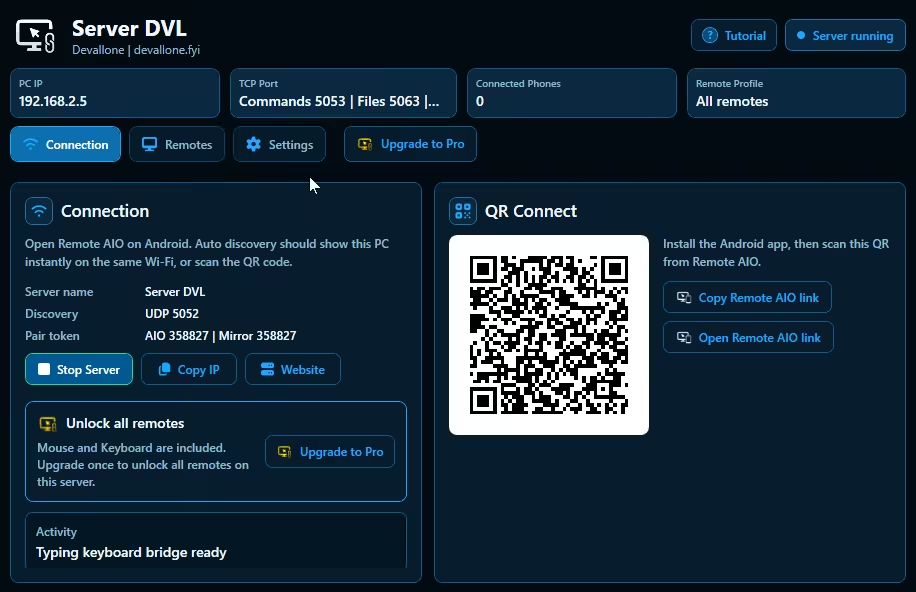
Discovery 5052 Automatically detects Server DVL.
Commands 5053 Sends remote-control commands.
Files 5063 Handles file browsing and file transfer.
PC Mirror 5050 Streams your PC screen to your phone.

Server DVL Tabs

Connection

Displays your PC IP address, connection status, QR code, server link, tutorial link, and connected Android devices.

Remotes

Allows you to enable or disable individual remote features. Mouse and Keyboard are free. Other remotes require Server Pro.

Settings

Contains general settings and remote-specific configuration options.

Server Pro

Server Pro unlocks all premium remotes with one activation. You do not need to activate every remote separately.

Free remotes:

Mouse
Keyboard

Server Pro remotes:

Joystick
Media
MIDI Piano
Presentation
Shortcuts
Files
PC Mirror
Power Control
Clipboard/Text
Desktop Remote
Custom Remote
Audio Mixer
Workspace Layout
3D Creator Control
Streaming Studio
Focus Session

Available Remotes

Mouse

Use your phone as a touchpad with left-click, right-click, middle-click, sensitivity settings, and optional gyroscope control.

Keyboard

Use your Android phone as a wireless keyboard for your Windows PC.

Joystick

Control supported games using joystick layouts and game profiles.

Media

Control volume, play, pause, next, previous, rewind, forward, and other media actions.

MIDI Piano

Play MIDI notes from your phone and use piano-related settings available on the server.

Presentation

Start presentation mode, navigate between slides, and manage presentation actions wirelessly.

Shortcuts

Use ready-made profiles and quickly send keyboard shortcuts to your PC.

Files

Browse, send, receive, and manage files between your phone and PC.

PC Mirror

View and control your Windows PC screen directly from your Android phone.

Power Control

Shut down, restart, sleep, lock, and manage other Windows power actions.

Clipboard/Text

Send text between your phone and PC and manage copy-and-paste actions.

Desktop Remote

Open applications, folders, windows, and desktop items from your phone.

Custom Remote

Create personalized remote controls using buttons, icons, colors, key events, profiles, and touchpad support.

Audio Mixer

Control Windows audio devices, individual application volumes, mute states, and sound levels.

Workspace Layout

Organize application windows and activate workspace layouts for faster desktop management.

3D Creator Control

Use profiles for Blender, Unity, Maya, Godot, ZBrush, Cinema 4D, and other creative applications.

Streaming Studio

Control streaming software using studio workflow buttons and OBS-style actions.

Focus Session

Manage focus tools, timers, and distraction-free work sessions from your phone.

Troubleshooting

  • Server DVL is not detected: Make sure your Windows PC and Android phone are connected to the same Wi-Fi network.
  • QR connection does not work: Try Auto Connection or enter the PC IP address using Manual Connection.
  • A remote does not open: Open the Remotes tab inside Server DVL and confirm that the required remote is enabled.
  • A premium remote is locked: Activate Server Pro to unlock premium remote features.
  • File transfer or PC Mirror does not work: Check Windows Firewall and allow Server DVL to communicate on private networks.
  • The PC IP address changed: Reconnect using Auto, QR, or Manual Connection.

Privacy

Server DVL communicates locally between your Android phone and your Windows PC. Your devices must normally be connected to the same local network.

For complete privacy information, read the Devallone Privacy Policy.

Quick Start

  1. Install Server DVL on your Windows PC.
  2. Install Remote AIO on your Android phone.
  3. Open Server DVL.
  4. Open Remote AIO.
  5. Connect using Auto, QR, or Manual Connection.
  6. Enable the remote features you want inside Server DVL.

Your Android phone is now ready to work as an all-in-one remote control for your Windows PC.

Download Server DVL

Download Remote AIO