

Mouse Control

Turn your Android phone into a smooth wireless mouse for your Windows PC. Control your cursor, click, scroll, and navigate your computer easily over the same Wi-Fi network.

App Screenshots

About This App

Mouse Control

Turn your Android phone into a smooth and responsive PC mouse over Wi-Fi.

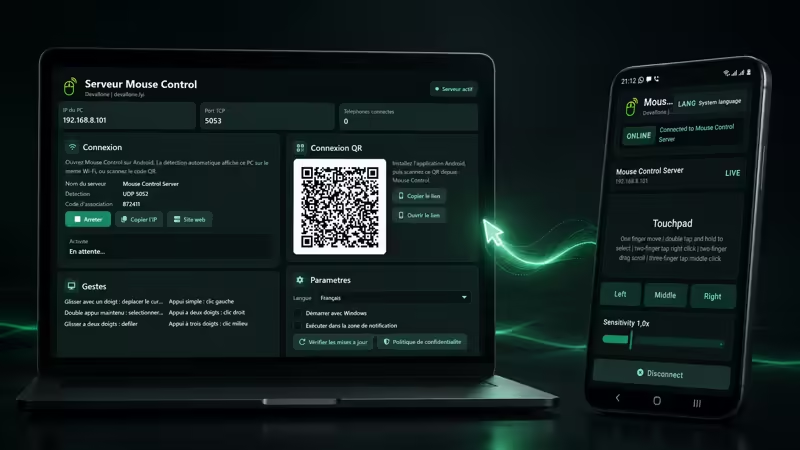
Mouse Control works with the Windows companion app, Mouse Control Server, allowing you to control your computer from your Android device on the same local network. Connect quickly using automatic server discovery, QR code pairing, or manual IP connection.

Designed for speed, reliability, and simplicity, Mouse Control gives you a natural touchpad experience with smooth cursor movement, responsive gestures, low battery usage, and a clean modern interface.

Features

✓ Smooth wireless PC mouse control
✓ Instant connection to your Windows PC
✓ Automatic server discovery
✓ QR code pairing
✓ Manual IP connection fallback
✓ High refresh rate for responsive control
✓ Low battery consumption
✓ Clean and simple touchpad interface
✓ Multilingual user interface
✓ Secure local network connection

Touchpad Gestures

• One-finger drag — Move the cursor
• Single tap — Left click
• Double tap and hold — Select or drag
• Two-finger tap — Right click
• Two-finger drag — Scroll
• Three-finger tap — Middle click

Windows Companion App

Mouse Control requires Mouse Control Server for Windows.

The Windows server provides:

• Local Wi-Fi connection support
• QR pairing support
• Automatic discovery
• Background and system tray support
• Start with Windows option
• Microsoft Store update checking
• Clear connection status and server information

Built for Everyday Control

Mouse Control is ideal for presentations, media control, comfortable PC navigation, productivity, and situations where you want to control your computer without staying next to your mouse.

Simple, fast, and reliable — Mouse Control turns your Android phone into a practical wireless touchpad for your Windows PC.

App Details

Platform

Android

Availability

Google Play

Updates

Supported

Use Case

Productivity

Ready to Try This Android App?

Install the app from Google Play and start using it today.

Devallone Guide

Tutorial

Clean step-by-step guidance with a smoother reading experience.

Mouse Control Tutorial

Mouse Control lets you turn your Android phone into a smooth wireless mouse and touchpad for your Windows PC. The Android app connects to Mouse Control Server on Windows using the same Wi-Fi or local network.

This guide explains how to install the Windows server, connect your phone, and use the touchpad gestures.

Requirements

Before using Mouse Control, make sure you have:

• An Android phone with Mouse Control installed
• A Windows PC with Mouse Control Server installed
• Both devices connected to the same Wi-Fi or local network
• Mouse Control Server running on the Windows PC

Mouse Control works over your local network. No account, cloud connection, or external driver is required.

  1. Install Mouse Control Server on Windows

Mouse Control requires the Windows companion app called Mouse Control Server.

Install Mouse Control Server from the Microsoft Store:

https://apps.microsoft.com/detail/9NFBR8JSGT50

After installation, open Mouse Control Server on your Windows PC.

When the server starts, it shows important connection information:

• PC IP address
• TCP port
• Connected phones
• Server status
• QR connection code
• Pairing information
• Gesture guide
• Settings

Keep Mouse Control Server open while connecting from your Android phone.

  1. Install Mouse Control on Android

Install the Android app Mouse Control from Google Play.

After opening the app, you will see the main connection screen. This screen allows you to find and connect to your Windows PC.

The Android app can connect in three ways:

• Automatic discovery
• QR code scanning
• Manual IP connection

  1. Connect Using Automatic Discovery

Automatic discovery is the fastest way to connect.

Make sure your Android phone and Windows PC are connected to the same Wi-Fi network.

Open Mouse Control Server on Windows, then open Mouse Control on Android. The app will search for nearby servers automatically.

When your PC appears in the nearby servers list, tap Connect.

Once connected, the app will show the server status as online, and you can start using your phone as a PC touchpad.

  1. Connect Using QR Code

QR connection is useful when you want quick pairing without typing the IP address.

On your Windows PC, open Mouse Control Server.

In the server dashboard, find the QR connection section. It shows a QR code that can be scanned from the Android app.

On Android:

• Open Mouse Control
• Tap Scan QR
• Point the camera at the QR code shown on the Windows server
• Wait for the connection to complete

After scanning, the phone connects to the PC automatically if both devices are on the same local network.

  1. Connect Manually Using IP Address

Manual connection is useful when automatic discovery is not available.

On Windows, open Mouse Control Server and check the PC IP address displayed on the dashboard.

On Android:

• Open Mouse Control
• Tap Manual
• Enter the PC IP address
• Connect to the server

Use the IP address exactly as shown in Mouse Control Server.

  1. Using the Touchpad

After connecting, the Android app opens the touchpad screen.

The touchpad area lets you move the PC cursor using your finger. It is designed to feel like a laptop touchpad, with simple gestures for clicking, dragging, scrolling, and middle click.

Touchpad gestures:

• One-finger drag — Move the cursor
• Single tap — Left click
• Double tap and hold — Select or drag
• Two-finger tap — Right click
• Two-finger drag — Scroll
• Three-finger tap — Middle click

You can also use the dedicated buttons:

• Left — Left mouse click
• Middle — Middle mouse click
• Right — Right mouse click

These buttons are useful when you want more precise mouse actions.

  1. Adjust Cursor Sensitivity

The touchpad screen includes a sensitivity slider.

Use this slider to adjust the pointer speed depending on your preference.

Increase sensitivity if you want faster cursor movement. Decrease sensitivity if you want more precise control.

  1. Change the App Language

Mouse Control includes a multilingual interface.

To change language:

• Open the language selector in the Android app
• Choose your preferred language
• Confirm the selection

You can also use the system language option to follow your Android device language.

  1. Windows Server Settings

Mouse Control Server includes useful settings for daily use.

Available server options include:

• Language selection
• Start with Windows
• Run in the system tray / notification area
• Check for updates from Microsoft Store
• Privacy policy access

Start with Windows allows Mouse Control Server to open automatically when Windows starts.

System tray mode allows the server to keep running in the background while staying out of the way.

  1. Disconnecting

To stop controlling the PC, tap Disconnect in the Android app.

You can also stop the Windows server from the server dashboard.

When disconnected, the Android app returns to the connection screen and can reconnect again whenever needed.

  1. Best Use Cases

Mouse Control is useful for:

• Presentations
• Media control
• Remote desktop navigation
• Everyday PC productivity
• Comfortable control from a sofa, desk, or nearby area
• Using your phone as a quick wireless touchpad

  1. Troubleshooting

If the Android app cannot find the Windows server, check the following:

• Make sure both devices are connected to the same Wi-Fi or local network
• Make sure Mouse Control Server is running on Windows
• Try pressing Refresh in the Android app
• Try scanning the QR code from the Windows server
• Try manual IP connection using the PC IP shown in the server
• Make sure your network allows local device communication
• Restart the Android app and Mouse Control Server if needed

If the cursor does not move smoothly:

• Check your Wi-Fi connection quality
• Move closer to the router if the signal is weak
• Adjust the sensitivity slider
• Make sure the Windows server is still active

  1. Privacy and Connection

Mouse Control is designed for local network use.

The Android app connects to your Windows PC over Wi-Fi or LAN using Mouse Control Server. The connection is made between your own devices on the same network.

Mouse Control does not require an account to use the basic local connection system.

Summary

Mouse Control gives you a simple and responsive way to control your Windows PC from your Android phone.

Install Mouse Control Server on Windows, open Mouse Control on Android, connect through automatic discovery, QR code, or manual IP, then use your phone as a smooth wireless touchpad with real mouse gestures.