
Mouse AIO Server: Control Your Windows PC from Android
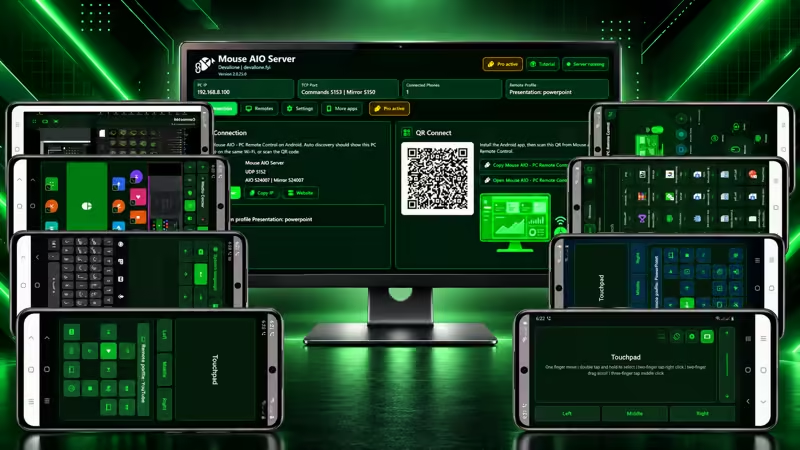
Mouse AIO Server is the Windows companion for Mouse AIO – PC Remote Control on Android. It connects your phone to your Windows PC and enables wireless mouse control, keyboard input, media commands, screen mirroring, desktop access, presentation tools, and fully customizable remotes.
Connect both devices to the same Wi-Fi or local network, open Mouse AIO Server on Windows, and choose automatic discovery, QR connection, or manual connection from the Android app.
One Server for Every Mouse AIO Remote
Mouse AIO Server receives commands from the Android application and performs them directly on your Windows computer. The server provides individual modules for every remote, allowing you to activate only the features you want to use.
- Mouse: Move the pointer, click, drag, and scroll from your phone.
- Keyboard: Type multilingual text and send special keys or shortcuts.
- Media: Control playback, navigation, system volume, and mute.
- PC Mirror: Stream the Windows screen to your Android device.
- Desktop Remote: Browse desktop items, open applications and folders, and manage windows.
- Sliders: Control presentations, slide navigation, pointers, annotations, and display tools.
- Custom Remote: Use personalized remote layouts and assign your own actions.
Fast and Flexible Connection
The server clearly displays your PC address, connection status, active remote profile, connected-phone count, and recent activity. Mouse AIO offers several ways to connect:
- Automatic discovery: Find the server automatically when both devices use the same local network.
- QR Connect: Scan the QR code displayed by the server using the Android app.
- Manual connection: Enter the PC address and pairing details manually.
- Connection sharing: Copy or open the Mouse AIO mobile application link directly from the server.
Mouse Settings
Adjust how mouse movement and scrolling respond to commands received from the phone.
- Adjust pointer speed from
0.5xto2.0x. - Adjust vertical scrolling speed.
- Enable inverted vertical scrolling.
- Apply mouse settings instantly while the server is running.
Keyboard Settings
Choose which types of keyboard input the connected phone is permitted to send.
- Allow or block special keys and keyboard shortcuts.
- Allow or block multilingual text input.
- Use regular typing, navigation keys, function controls, and supported Windows shortcuts.
Media Controls
Allow your phone to control supported media applications and Windows audio commands. Available controls can include play, pause, stop, previous, next, rewind, forward, fullscreen, subtitles, system volume, and mute.
Media profiles include VLC, YouTube, Spotify, Windows Media, Netflix, and generic media applications. Available commands depend on the selected media profile.
- Allow or block playback and navigation controls.
- Allow or block system volume and mute controls.
Configurable PC Screen Mirroring
Mouse AIO Server can capture your Windows display and stream it to the Android app across the local network. You can balance image quality, responsiveness, CPU usage, and network usage from the server settings.
- Select the streaming resolution, including original resolution when available.
- Select the desired frame rate.
- Adjust JPEG image quality from
35%to90%. - Monitor the stream status and connected mirror clients.
- View the currently active resolution and FPS preset.
Higher resolutions, image quality, and frame rates require more processing power and local-network bandwidth.
Desktop Remote
Desktop Remote gives the Android app access to useful Windows desktop items and active windows.
- Browse desktop files, folders, shortcuts, and applications.
- Include applications from the Windows Start menu.
- Optionally display hidden desktop items.
- Choose the maximum number of items returned to the phone.
- Launch applications and open folders.
- Focus, minimize, or close active windows.
Presentation and Sliders Remote
Use your phone as a presentation controller for PowerPoint, Google Slides, LibreOffice Impress, WPS Presentation, Canva, and generic presentation applications.
- Move to the next or previous slide.
- Start or end a presentation.
- Start from the current slide.
- Use pointer, pen, ink, arrow, and eraser tools where supported.
- Control blank-screen and presentation display functions.
- Allow or block navigation and presentation tools independently.
Custom Remote Security Controls
Custom Remote profiles can combine keyboard commands, text input, media actions, mouse controls, screen panels, websites, files, and folders. Mouse AIO Server lets you restrict sensitive custom actions independently.
- Allow or block keyboard, text, and media actions.
- Allow or block actions that open websites or local files.
- Keep personalized remote layouts while controlling what they may execute on the PC.
Remote Module Management
Every remote module can be enabled or disabled from the Remotes tab. When a module is disabled, the Android app clearly informs the user that the remote must be enabled on the server.
Mouse and Keyboard are included. Mouse AIO Server Pro unlocks the advanced remote modules. After Pro activation, all supported Pro remotes are enabled automatically, and you can disable individual modules whenever needed.
General Server Settings
- Start Mouse AIO Server automatically with Windows.
- Keep the server running in the background.
- Show notifications when a phone disconnects.
- Check for available server updates.
- Open the privacy policy directly from the application.
- Change the server interface language.
The server interface supports English, Arabic, German, Spanish, French, Hindi, Portuguese, Russian, and Chinese. Arabic includes right-to-left interface support.
Local Network and Ports
Mouse AIO remote-control traffic is designed to operate across your local network. No Mouse AIO account is required.
- Automatic discovery: UDP port
5152 - Remote commands: TCP port
5153 - PC screen mirroring: TCP port
5150
If your phone cannot discover the PC, confirm that both devices are connected to the same network and that Mouse AIO Server is permitted through Windows Firewall.
How to Get Started
- Install Mouse AIO Server on your Windows PC.
- Install Mouse AIO – PC Remote Control on your Android device.
- Open the Windows server and keep it running.
- Connect the phone and PC to the same Wi-Fi or local network.
- Find the server automatically, scan its QR code, or connect manually.
- Open the Remotes tab and enable the remote modules you want to use.
- Select a remote on Android and begin controlling your PC.
System Requirements
- A PC running Windows 10 or Windows 11.
- An Android phone or tablet with Mouse AIO – PC Remote Control installed.
- A shared Wi-Fi or local network connection.
- Firewall permission for Mouse AIO Server and its local communication ports.
Help, Tutorial, and Privacy
- Mouse AIO Server information and tutorial
- Mouse AIO – PC Remote Control information and tutorial
- Mouse AIO privacy policy
Mouse AIO Server brings every Mouse AIO remote together in one configurable Windows application, giving you control over connectivity, permissions, performance, screen-streaming quality, and remote availability.