
Keyboard Control

Use your Android phone as a wireless keyboard and mouse for Windows.

App Screenshots

About This App

Keyboard Control turns your Android phone into a wireless keyboard and mouse remote for your Windows PC.

Designed for productivity, presentations, media PCs, classroom use, office work, and everyday desktop control, Keyboard Control lets you control real Windows keyboard and mouse actions from your Android phone over your local Wi-Fi/LAN network.

To use the app, install and run Keyboard Control Server on your Windows PC, then connect the Android app using automatic discovery, QR code pairing, or manual IP connection. Once connected, your phone becomes a practical remote keyboard and touchpad controller for your computer.

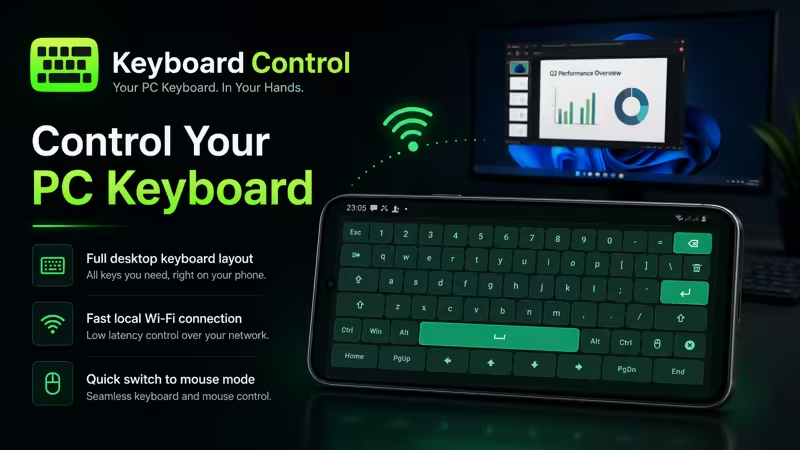
Keyboard Control includes a custom in-app keyboard designed for desktop control. It does not rely on the normal Android keyboard. Instead, it provides a clean keyboard layout with useful Windows and desktop-style keys.

Main features:

• Wireless Android-to-Windows keyboard control
• Mouse remote and touchpad mode
• Local Wi-Fi/LAN connection
• Automatic server discovery
• QR code pairing
• Manual IP connection
• Real Windows keyboard and mouse input through the server
• Custom in-app keyboard layout
• Landscape keyboard screen
• Large touchpad area for pointer control
• Left, middle, and right mouse buttons
• Vibration feedback for key presses
• Simple connection home screen
• Dark premium interface with green accent design

The custom keyboard includes important desktop keys such as:

• Esc
• Ctrl
• Alt
• Win
• Shift
• Caps
• Enter
• Backspace
• Delete
• Arrow keys
• Home
• End
• Page Up
• Page Down

Mouse mode lets you switch from keyboard control to pointer control when needed. You can move the cursor using the touchpad area and use left click, middle click, and right click from your phone.

Keyboard Control is useful for many situations, including:

• Controlling a Windows PC from your phone
• Using your phone as a wireless keyboard
• Using your phone as a mouse or touchpad
• Presentation control
• Media PC and TV-connected computer control
• Classroom and office use
• Desktop setups where your physical keyboard or mouse is not nearby

Keyboard Control works with the Windows companion app, Keyboard Control Server. The server receives commands from your Android phone and injects real keyboard and mouse actions into the focused Windows application.

The app is designed around local network control. Your phone and PC communicate over the same Wi-Fi/LAN network for a fast and practical remote control experience.

Important:

• Requires Keyboard Control Server on a Windows PC
• Phone and PC must be connected to the same local Wi-Fi/LAN network
• Windows Firewall permission may be required for the server
• Input behavior may depend on the focused Windows app or game
• This app is designed for keyboard and mouse control, not full remote desktop streaming

Keyboard Control gives you a clean and professional way to control your Windows PC directly from your Android phone.

Keyboard Control — your Android phone, your Windows keyboard and mouse remote.

App Details

Platform

Android

Availability

Google Play

Updates

Supported

Use Case

Productivity

Ready to Try This Android App?

Install the app from Google Play and start using it today.

Devallone Guide

Tutorial

Clean step-by-step guidance with a smoother reading experience.

Keyboard Control Tutorial

This tutorial explains how to connect Keyboard Control on Android with Keyboard Control Server on Windows and start using your phone as a wireless keyboard and mouse remote for your PC.

Requirements

Before starting, make sure you have:

• An Android phone with Keyboard Control installed
• A Windows PC with Keyboard Control Server installed
• Phone and PC connected to the same Wi-Fi/LAN network
• Windows Firewall permission allowed for the server if requested

Keyboard Control Server for Windows:
https://apps.microsoft.com/detail/9MWFCPTZJ9SM

Step 1 — Install and open the Windows server

On your Windows PC, install and open Keyboard Control Server.

The server dashboard shows important connection information such as:

• Server status
• PC IP address
• TCP port
• QR code pairing
• Connected phone count
• Remote type
• Server activity
• Manual connection details

Make sure the server is running before trying to connect from your Android phone.

Step 2 — Open Keyboard Control on Android

Open the Keyboard Control app on your Android phone.

The home screen focuses on connection options such as:

• Nearby server discovery
• QR code scan
• Manual IP connection
• Settings
• Language
• Privacy

For best results, keep your Android phone and Windows PC connected to the same local Wi-Fi/LAN network.

Step 3 — Connect using automatic discovery

Automatic discovery is the easiest method when your phone and PC are on the same network.

  1. Open Keyboard Control Server on Windows.
  2. Open Keyboard Control on Android.
  3. Choose the nearby server or discovery option.
  4. Select your PC when it appears.
  5. Wait for the connection to complete.

After connection, you can start using your phone as a remote keyboard and mouse.

Step 4 — Connect using QR code

QR code pairing is useful for fast setup.

  1. Open Keyboard Control Server on your Windows PC.
  2. Find the QR code shown on the server screen.
  3. Open Keyboard Control on your Android phone.
  4. Choose the QR scan option.
  5. Scan the QR code from the Windows server.
  6. Wait for the app to connect.

Once connected, the Android app can send keyboard and mouse commands to your PC.

Step 5 — Connect manually using IP address

Manual connection is useful if automatic discovery does not find your PC.

  1. Open Keyboard Control Server on Windows.
  2. Copy the IP address and port shown in the server dashboard.
  3. Open Keyboard Control on Android.
  4. Choose manual IP connection.
  5. Enter the PC IP address and port.
  6. Tap connect.

Make sure the IP address and port are typed correctly.

Step 6 — Use keyboard mode

Keyboard mode lets you control real Windows keyboard actions from your phone.

Keyboard Control uses a custom in-app keyboard, not the normal Android keyboard. The layout is designed for desktop control and includes useful keys such as:

• Esc
• Ctrl
• Alt
• Win
• Shift
• Caps
• Enter
• Backspace
• Delete
• Arrow keys
• Home
• End
• Page Up
• Page Down

Use keyboard mode when you want to type, navigate, control apps, manage media, or use desktop shortcuts from your phone.

Step 7 — Use mouse mode

Mouse mode lets your phone work like a touchpad for your Windows PC.

You can use:

• Touchpad movement for cursor control
• Left click
• Middle click
• Right click

Use mouse mode when you need pointer control, desktop navigation, presentations, media control, or TV-connected PC control.

Step 8 — Use vibration feedback

Keyboard Control includes vibration feedback for key presses.

Vibration is available in settings and may be enabled by default. You can keep it enabled for a more responsive typing feel or disable it if you prefer silent control.

Step 9 — Test the controls

After connecting, test the app in a simple Windows app first.

You can test:

• Typing in Notepad or another text field
• Arrow key navigation
• Enter and Backspace
• Ctrl, Alt, Shift, and Win keys
• Mouse movement
• Left, middle, and right mouse clicks

After confirming that the connection works, use it with your presentation, media app, desktop setup, or other Windows workflow.

Troubleshooting

If the phone cannot connect:

• Make sure phone and PC are on the same Wi-Fi/LAN network
• Make sure Keyboard Control Server is open and running
• Allow the server through Windows Firewall if Windows asks
• Try QR code pairing
• Try automatic discovery again
• Try manual IP connection
• Restart the Android app and Windows server
• Check that the IP address and port are correct

If keyboard or mouse input does not work:

• Make sure the Windows server shows an active connection
• Make sure the correct window or app is focused on Windows
• Test in Notepad or another simple app
• Check whether the target app blocks simulated input
• Reconnect the phone and server
• Restart the server if needed

Important notes

• Keyboard Control requires the Windows server app
• Phone and PC must be on the same local Wi-Fi/LAN network
• Windows Firewall permission may be required
• Input behavior can depend on the focused Windows app
• Keyboard Control is designed for keyboard and mouse control, not remote desktop screen streaming

Keyboard Control gives you a practical Android-to-Windows remote control workflow: open the server, connect your phone, choose keyboard or mouse mode, and control your PC from your Android device.