


Jodadaty | جذاذتي – Devallone.fyi

Jodadaty | جذاذتي

Create organized lesson plans by language, subject, and grade level, and edit them using rich formatting tools.

App Screenshots

About This App

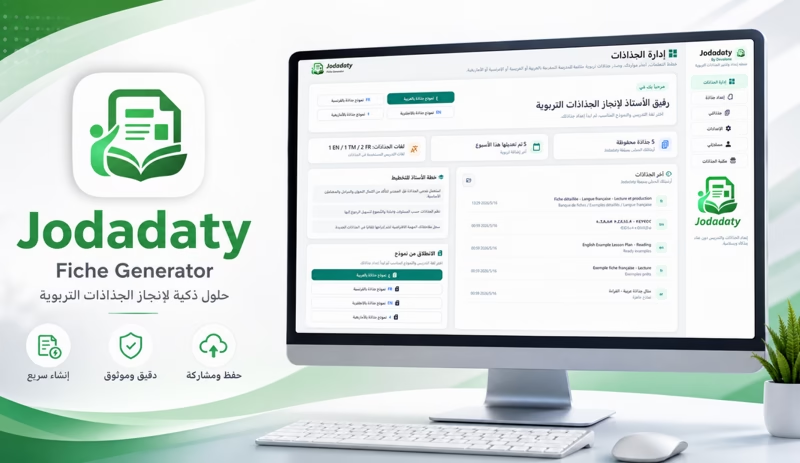
Jodadaty By Devallone is a desktop application designed for teachers to create educational lesson plans quickly and in an organized way. The application allows users to create lesson plans in Arabic, French, English, or Amazigh by selecting the grade level, subject, component, domain, unit, week, session number, and duration, then editing the lesson content through a clear interface designed for everyday teaching work.

The application includes a complete editor for writing and formatting the different elements of a lesson plan, including competencies, objectives, prior learning, teaching materials, lesson procedures, notes, and guidelines. It also supports organizing lesson stages into separate cards containing teacher activities, learner activities, work format, and the duration of each stage, making lesson preparation clearer and more structured.

Jodadaty allows lesson plans to be saved in its dedicated .jodadaty format so they can be reopened and edited later. Lesson plans can also be exported as print-ready PDF files. The application provides several PDF customization options, including layout style, logo, fonts, information header, footer, signature images, and institution stamp.

Through the “My Information” page, users can enter their professional information once, including the institution name, academy, directorate, school year, teacher name, principal, and inspector, as well as the logo, signatures, and institution stamp. This information can then be automatically reused in new or previously saved lesson plans.

The application also includes a “My Lesson Plans” page for organizing saved lesson plans using a tree of categories and folders. Users can search, open, copy, delete, locate files on their computer, and add categories to favorites. Jodadaty can also automatically generate a category structure aligned with the Moroccan curriculum according to grade level and subject.

Jodadaty also provides a lesson plan library connected to the Devallone server, allowing teachers to download ready-made lesson plans and templates, save them locally, open them directly, or add them to favorites. The application also includes a book request feature for teachers who need lesson plans for a textbook that is not yet available in the library.

The application is designed with privacy in mind. Lesson plans and settings are stored locally on the user’s device, and files are not automatically uploaded to any server. An internet connection is used only when accessing the lesson plan library, submitting book requests, verifying the Microsoft Store license, or opening official links.

In short, Jodadaty is a digital companion for teachers that helps them create, organize, save, and export lesson plans for printing while reducing repetitive work and providing a practical experience designed specifically for educational use.

App Details

Platform

Wondows

Availability

Microsoft Store

Updates

Supported

Use Case

Productivity

Ready to Try This Windows App?

Install the app from Microsoft Store and start using it today.

Devallone Guide

Tutorial

Clean step-by-step guidance with a smoother reading experience.


Jodadaty User Guide

A complete guide to creating, editing, organizing, saving, and exporting educational lesson plans with Jodadaty by Devallone.

Official Page

Jodadaty Mobile

What Is Jodadaty?

Jodadaty is a desktop application designed for teachers who want a faster and more organized way to prepare educational lesson plans.

It supports lesson plans in Arabic, French, English, and Amazigh. You can organize educational information, edit lesson content, manage lesson stages, save your work, and export the completed lesson plan as a PDF.

Lesson plans can be saved in Jodadaty’s dedicated
.jodadaty

format so they can be reopened and edited later.

What Can You Do With Jodadaty?

  • Create educational lesson plans in multiple languages.
  • Organize grade level, subject, component, unit, week, and session information.
  • Edit objectives, competencies, teaching resources, notes, and lesson stages.
  • Create structured stages containing teacher and learner activities.
  • Save lesson plans and reopen them later for editing.
  • Export completed lesson plans as PDF files ready for printing.
  • Organize saved lesson plans using categories and folders.
  • Save your professional information once and reuse it automatically.
  • Customize PDF fonts, logos, signatures, headers, and other export options.
  • Download ready-made lesson plans from the Lesson Plan Library.
  • Request textbooks that are not yet available in the library.

First Launch

When you open Jodadaty for the first time, a privacy policy window may appear. Read the information and click the agreement button to continue.

Important: Your lesson plans, settings, categories, and professional information are stored locally on your device.

Jodadaty does not automatically upload your personal lesson-plan files to a server.

An internet connection is required for online features such as the Lesson Plan Library, book requests, Microsoft Store license verification, and external Devallone or Google Play links.

Main Interface

The Jodadaty sidebar gives you quick access to the application’s main sections.

Lesson Plan Management

The main dashboard with statistics, quick creation options, and recently used lesson plans.

Prepare a Lesson Plan

Create a new lesson plan or edit the currently open lesson plan while configuring its educational information.

My Lesson Plans

Browse, organize, search, open, copy, and manage your saved lesson plans.

My Information

Store your institution, teacher, principal, and inspector information, along with logos, signatures, and stamps.

Settings

Configure application preferences, curriculum options, categories, PDF appearance, and default values.

Lesson Plan Library

Browse and download ready-made lesson plans, manage favorites, and request textbooks that are not yet available.

Dashboard: Lesson Plan Management

The Lesson Plan Management page is the main starting point for your daily work. It provides quick-start buttons for Arabic, French, English, and Amazigh lesson plans, together with useful statistics and recently used files.

  1. Choose the desired lesson-plan language using a quick-start button.
  2. Jodadaty opens the corresponding lesson plan in the editor.
  3. Edit the lesson-plan name, date, educational information, and content.
  4. Click Save when you are ready to save your work.

Create a New Organized Lesson Plan

For greater control over the educational information associated with your lesson plan, use the Prepare a Lesson Plan page.

  1. Open Prepare a Lesson Plan.
  2. Click Create New Lesson Plan if no lesson plan is currently open.
  3. Enter the lesson-plan name.
  4. Choose the lesson-plan language.
  5. Select the grade level.
  6. Select the subject.
  7. Choose the component or domain.
  8. Select the topic or entry when required.
  9. Specify the unit and week.
  10. Enter the session number and lesson duration.
  11. Choose the appropriate category from the category tree.
  12. Click Create.
Note:
The interface language does not determine the writing direction of the lesson plan. Arabic lesson plans use right-to-left direction, while French and English lesson plans use left-to-right direction.

Editing a Lesson Plan

After opening or creating a lesson plan, the editor becomes your main workspace. The top area provides access to the most important file and lesson-plan actions.

Main Actions

Open, Save, Save As, Fill from My Information, Export PDF, Open Last PDF, Validate Lesson Plan, and Close Lesson Plan.

Text Formatting Toolbar

Use undo and redo, bold, italic, underline, bulleted and numbered lists, alignment, text colors, mathematical and geometric symbols, and superscript numbers.

Lesson Plan Fields

Depending on the selected template, the editor may include grade level, subject, component, domain, unit, week, session, school year, duration, competencies, objectives, resources, procedure, notes, and guidelines.

Lesson Stages

Lesson stages appear as separate cards. Each stage can contain its name, teacher activities, learner activities, work format, and duration. You can add, reorder, or delete stages as required.

Saving and Opening Lesson Plans

Jodadaty uses

.jodadaty

as its primary lesson-plan project format.

  • When saving a new lesson plan, Jodadaty asks you to choose a save location.
  • Saved lesson plans can appear in Recent Lesson Plans and on the My Lesson Plans page.
  • Current lesson-plan files use a compressed and protected internal format.
  • Older JSON and older .jodadaty files can still be opened.
  • When an older file is saved again, it is converted to the current format.
  • Use Save As when you want to create a separate copy without replacing the original lesson plan.

Export a Lesson Plan to PDF

  1. Open the lesson plan in the editor.
  2. Review the content and save your latest changes.
  3. Click Export PDF.
  4. Choose where you want to save the PDF.
  5. If automatic opening is enabled, the generated PDF will open after the export is completed.
PDF Watermark:
If watermark removal has not been activated, exported PDF files may contain a watermark. Watermark removal is available as a one-time purchase through the Microsoft Store and is not a monthly subscription.

From the Settings page, you can customize the PDF style, logo, fonts, information header, signatures, footer, and automatic opening behavior.

My Lesson Plans

The My Lesson Plans page is the central location for organizing and searching the lesson plans that have been added to Jodadaty.

  • Browse files by category.
  • Search for a lesson plan.
  • Open saved lesson plans.
  • Create copies when needed.
  • Locate saved files.
  • Remove or delete lesson plans.
Important:
Removing a lesson plan from the application’s index does not necessarily delete the actual file from your computer. Read the deletion confirmation carefully before continuing.

Categories and Curriculum Tree

Categories help you organize lesson plans according to the structure that works best for you, such as grade level, semester, unit, week, or subject.

Apply the Curriculum Tree

  1. Open Settings.
  2. Choose the grade level.
  3. Select the subjects you want to include.
  4. Click Apply Curriculum Tree.
  5. Confirm the operation.

Jodadaty will generate an organized structure based on semesters, units, weeks, and subjects.

Warning:
Applying the curriculum tree replaces the current category tree. If you have created custom categories, review the confirmation message carefully before applying a new structure.

My Information

The My Information page lets you save your professional information once and reuse it across new and existing lesson plans.

Information is organized by language:

  • Arabic
  • French
  • English
  • Amazigh

You can save information such as:

  • Ministry name.
  • Academy.
  • Directorate.
  • Institution and institution address.
  • School year.
  • Teacher name.
  • Principal name.
  • Inspector name.

You can also select images for:

  • Logo.
  • Teacher signature.
  • Principal signature.
  • Inspector signature.
  • Institution stamp.
After entering or updating your information, click Save My Information. You can also use Fill from My Information inside an open lesson plan.

Settings

General Settings

Configure the application interface language, default lesson-plan language, dashboard options, access to the user-data folder, and automatic filling of downloaded lesson plans.

Curriculum and Category Settings

Select a grade level and subjects, apply a curriculum tree, or restore the default category structure.

PDF Settings

Customize the PDF style, logo, fonts, custom font, information header, signature images, footer, and automatic opening after export.

Lesson Plan Library

The Lesson Plan Library connects to the Devallone server and provides access to ready-made lesson plans and educational resources.

From the library, you can:

  • Browse folders.
  • Refresh available content.
  • Switch between list and grid views.
  • Download a lesson plan.
  • Download and immediately open a lesson plan.
  • Add items to favorites.

Download a Lesson Plan

  1. Select a lesson plan from the library.
  2. Click Download or Download and Open.
  3. Choose where to save the file.
  4. Jodadaty saves the lesson plan in .jodadaty format.
  5. If automatic filling is enabled, compatible professional information is inserted into the lesson plan.
  6. The downloaded lesson plan is added to Recent Lesson Plans.

Request a Book From the Library

If lesson plans for a textbook are not currently available, you can submit a request directly from the Lesson Plan Library.

  1. Open the Lesson Plan Library.
  2. Go to the Book Request section.
  3. Choose the grade level.
  4. Choose the subject.
  5. Enter only the textbook name.
  6. Click Submit Request.
  7. Refresh My Requests when you want to check its status.

A request can have one of the following statuses: Pending, Accepted, Rejected, or Completed.

Privacy Notice:
Enter only the textbook name. Do not enter your name, phone number, email address, institution information, or other personal information in this field.

Privacy and Local Data

Jodadaty stores its primary application data locally on your computer.

The default user-data location is:

%APPDATA%JodadatyWpfUserData
  • settings.json — Application settings and saved information.
  • categories.json — Category tree.
  • recent_fiches.json — Recent lesson-plan index.
  • projects — Default projects folder.

When submitting a book request, Jodadaty sends Devallone the information required to process the request, including a randomly generated identifier, grade level, subject, and book name. Do not include personal information in the book-name field.

Recommended Workflow

  • Complete the My Information page before creating lesson plans.
  • Configure your default lesson-plan language from Settings.
  • Select the appropriate grade level and curriculum options before creating multiple lesson plans.
  • Use Create New Lesson Plan when you want curriculum information to be filled automatically.
  • Organize lesson plans using categories.
  • Use favorites for frequently accessed content.
  • Use Save As when creating a new lesson plan based on an existing one.
  • Click Validate Lesson Plan before the final export.
  • Save your latest changes before exporting to PDF.
  • Keep a backup of your UserData folder before reinstalling Windows or moving Jodadaty to another computer.

Common Problems and Solutions


My lesson plan does not appear in My Lesson Plans

Open the lesson plan and save it again so Jodadaty can add or refresh it in the lesson-plan index.

The lesson plan appears in the list but does not open

The original file may have been moved, renamed, or deleted. Try opening it manually from its current location or use Open File Location when available.

The exported PDF contains a watermark

This is expected when watermark removal has not been activated. The feature can be activated through the Microsoft Store as a one-time purchase.

My professional information does not appear

Make sure your information has been entered under the correct language tab and click Save My Information. You can also use Fill from My Information inside the editor.

The text direction is incorrect

The lesson-plan writing direction depends on the language selected when the lesson plan was created.

The Lesson Plan Library does not work

Check your internet connection and refresh the library because this feature needs to communicate with the Devallone server.

Quick Start: Create an Arabic Lesson Plan and Export It

Follow these steps to create your first Arabic lesson plan from beginning to end.

  1. Open Jodadaty.
  2. Go to My Information.
  3. Enter your institution and teacher information.
  4. Click Save My Information.
  5. Open Settings.
  6. Select Arabic as the default lesson-plan language.
  7. Select your grade level and configure the required curriculum options.
  8. Open Prepare a Lesson Plan.
  9. Click Create New Lesson Plan.
  10. Enter the lesson-plan name.
  11. Choose Arabic, the grade level, and subject.
  12. Select the component and domain when applicable.
  13. Choose the unit and week.
  14. Enter the session number and duration.
  15. Choose the appropriate category.
  16. Click Create.
  17. Complete the lesson-plan fields.
  18. Add or edit the lesson stages.
  19. Click Validate Lesson Plan.
  20. Click Save or Save As.
  21. Click Export PDF and choose where to save the generated document.

Your lesson plan is now saved in Jodadaty and available as a PDF ready for printing or sharing.

Visit the Official Page

Start Creating With Jodadaty

Jodadaty brings lesson-plan creation, organization, editing, and PDF export into one structured workspace designed for teachers.

Jodadaty Official Page

Get Jodadaty Mobile