
Custom Remote Control Server – Devallone.fyi

Custom Remote Control Server

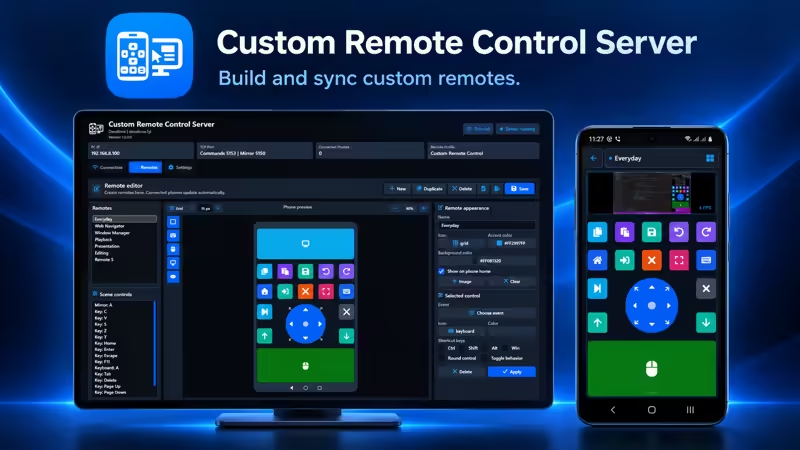
Custom Remote Control Server turns your Android device into a personalized Windows remote. Create custom layouts with mouse, keyboard, screen mirror, joystick, shortcuts, website and file actions using a professional drag-and-drop editor. Remotes synchronize automatically with connected phones over your local network.

App Screenshots

About This App

Custom Remote Control Server for Windows

Custom Remote Control Server transforms your Android phone or tablet into a fully personalized remote control for a Windows PC. Instead of being limited to fixed layouts, you can create your own remotes on the computer using a professional visual editor, then synchronize them automatically with the Android app.

Build dedicated controllers for everyday computer use, media playback, presentations, web browsing, creative software, gaming shortcuts, productivity tools and specialized workflows.

Create Remotes Designed for Your Workflow

The integrated Remote Editor gives you complete control over every remote layout. Add controls to the phone preview, move and resize them with the mouse, customize their appearance and assign the exact Windows actions you need.

Each saved remote is automatically delivered to connected Android devices. You can update a layout on the server and use the new version on your phone without rebuilding or reinstalling the mobile app.

Professional Visual Remote Editor

  • Create, duplicate, rename and delete remote profiles.
  • Design remotes directly inside an accurate phone preview.
  • Drag controls from the toolbox and drop them onto the remote.
  • Move and resize controls visually with the mouse.
  • Use adjustable grid snapping for precise alignment.
  • Choose grid steps down to 5 pixels.
  • Show or hide the editor grid.
  • Zoom the preview in 5% increments.
  • Pan the preview while working at larger zoom levels.
  • Undo, redo, copy, paste and delete selected controls.
  • Keep remote layouts in their original direction across LTR and RTL languages.

Available Remote Controls

Custom Key

Create compact buttons that execute keyboard keys, shortcuts, media commands, mouse clicks or launch actions. Every key can have its own icon, color, size, position and behavior.

Keyboard Control

Add a keyboard control anywhere in the layout. When it is selected on Android, the phone keyboard opens and sends keys or typed text directly to the connected Windows PC.

Mouse Touchpad

Add one or more touchpad areas for controlling the Windows pointer. The mouse control supports pointer movement, left click, right click and two-finger scrolling.

Screen Mirror

Place a live view of the Windows desktop inside any custom remote. Screen mirroring can be combined with mouse, keyboard, joystick and shortcut controls in the same layout.

Joystick

Add a professional four-direction or eight-direction joystick. It can send Windows arrow-key states and supports diagonal movement when eight-direction mode is enabled.

Powerful Actions and Shortcuts

Custom keys can perform a wide range of Windows actions:

  • Send individual keyboard keys.
  • Create shortcuts with Ctrl, Shift, Alt and the Windows key.
  • Type predefined text.
  • Send media playback and volume commands.
  • Perform left, middle or right mouse clicks.
  • Open a website in the default browser.
  • Open a Windows file, application or folder.
  • Create toggle-style controls for persistent visual states.

Complete Appearance Customization

Every remote can have its own visual identity. Customize the remote name, icon, accent color, background color and optional background image.

Individual controls can also use different colors, icons, dimensions and shapes. Choose from the integrated icon library to create clear layouts that remain easy to recognize on a phone screen.

Automatic Android Synchronization

The Windows server is the central editor and storage location for your custom remotes. Connected Android devices periodically check for updates and automatically download the latest remote catalog.

  • Create and edit remotes on a larger Windows screen.
  • Press Save to publish the latest layout.
  • Update connected phones automatically.
  • Receive an Android notification when remotes are updated.
  • Keep control positions unchanged regardless of the selected interface language.

Import and Export Remotes

Back up your complete remote collection or transfer it to another computer using the integrated import and export system.

  • Export remotes to a .crc-remotes.json file.
  • Import compatible remote collections.
  • Preserve profiles, controls, positions, colors, icons and actions.
  • Share useful remote layouts between your own computers.

Fast Local Network Connection

The server communicates with the Android app through your local Wi-Fi network. No account or cloud connection is required.

  • Automatic server discovery on the local network.
  • QR-code connection.
  • Manual IP-address connection.
  • Pairing-token protection.
  • Command connection through TCP port 5153.
  • Screen mirroring through TCP port 5150.
  • Automatic discovery through UDP port 5152.

Responsive Screen Mirroring

The mirror system is optimized for custom remotes where screen viewing and mouse control are used together. The server sends recent frames without allowing outdated frames to accumulate.

Available mirror settings include:

  • 426ร—240, 640ร—360 and 854ร—480 resolutions.
  • 5, 10 and 15 FPS frame-rate options.
  • Adjustable JPEG quality from 35% to 75%.
  • Independent frame delivery for connected devices.
  • Automatic dropping of outdated frames.
  • Background decoding on Android.

For most networks, 640ร—360 at 10 FPS and approximately 50% JPEG quality provides a strong balance between visibility and responsive control.

Mouse and Keyboard Settings

  • Adjust Windows pointer speed.
  • Adjust scrolling speed.
  • Invert the scrolling direction.
  • Allow or block keyboard commands.
  • Allow or block text input.
  • Control whether custom input actions may execute.

Desktop and Launch Controls

The server can provide access to Windows desktop items, applications, files and folders. Configure whether the Start menu and hidden items are included and limit the maximum number of displayed entries.

Website, file and folder launching can be disabled independently from the server settings whenever additional restrictions are preferred.

Background Operation

  • Start the server automatically with Windows.
  • Keep the server running in the notification area.
  • Show phone-disconnection notifications.
  • Start or stop the server from the main interface.
  • View the active IP address and connected-phone count.
  • Monitor server activity and the currently active remote profile.

Multilingual Interface

Custom Remote Control Server includes support for multiple interface languages, including English, Arabic, German, Spanish, French, Hindi, Portuguese, Russian and Chinese.

The editor interface follows the selected language direction, while the designed remote itself keeps its original control positions and dimensions.

Privacy and Security

  • Communication takes place over the local network.
  • No user account is required.
  • No cloud remote-storage service is required.
  • Pairing information helps prevent unintended connections.
  • Keyboard, text, website and file actions can be restricted.
  • Remote collections remain under the userโ€™s control.

System Requirements

  • Windows 10 or Windows 11.
  • An Android phone or tablet with Custom Remote Control for PC installed.
  • Both devices connected to the same local network.
  • Windows Firewall permission on private networks.

All Remote Features Included

Custom Remote Control Server is designed as a complete remote-building platform. The editor, mouse, keyboard, mirror, joystick, synchronization, import and export features are included without requiring separate remote add-ons.

Download and Learn More

Create the controls you need, arrange them your way and manage your Windows PC from a personalized Android remote.

App Details

Platform

Wondows

Availability

Microsoft Store

Updates

Supported

Use Case

Productivity

Ready to Try This Windows App?

Install the app from Microsoft Store and start using it today.

Devallone Guide

Tutorial

Clean step-by-step guidance with a smoother reading experience.

Custom Remote Control Server: Complete Setup and Editor Tutorial

Custom Remote Control Server is the Windows companion for the Custom Remote Control for PC Android app. It connects your phone to your computer over the local network and lets you create personalized remote-control layouts directly on the PC.

The server includes mouse control, keyboard input, screen mirroring, joystick controls, shortcuts, website and file launching, remote importing and exporting, and a visual drag-and-drop editor.

Download Custom Remote Control Server

System Requirements

  • A Windows 10 or Windows 11 computer.
  • An Android phone or tablet.
  • Both devices connected to the same local Wi-Fi or network.
  • Permission for the server to communicate through Windows Firewall on private networks.

1. Install and Start the Server

  1. Install Custom Remote Control Server from Microsoft Store.
  2. Open the server from the Windows Start menu.
  3. If Windows Firewall asks for permission, enable access for Private networks.
  4. Confirm that the status at the top of the window says Server running.

The server can continue running in the background. You can also configure it to start automatically with Windows from the Settings tab.

2. Understand the Connection Information

The Connection tab displays the information required by the Android app:

  • PC IP: The local network address of your computer.
  • Command port: Port 5153, used for mouse, keyboard, joystick and custom actions.
  • Mirror port: Port 5150, used for screen mirroring.
  • Discovery port: UDP port 5152, used to find the server automatically.
  • Pair token: A temporary security code used when connecting.
  • QR Connect: A QR code containing the connection details.

3. Connect the Android App

  1. Install Custom Remote Control for PC on Android.
  2. Make sure the phone and computer are connected to the same Wi-Fi network.
  3. Keep Custom Remote Control Server running on the PC.
  4. Open the Android app and allow it to search for nearby servers.
  5. Select your computer from the discovered server list.

You can also scan the QR code or enter the PC IP address and pairing information manually if automatic discovery is unavailable.

4. Open the Remote Editor

Select the Remotes tab to open the visual remote editor. The editor is divided into three main areas:

  • Remotes: Lists all remote profiles stored on the server.
  • Phone preview: Shows how the remote will appear on Android.
  • Properties: Changes the selected remote or control.

The phone preview always keeps the same left-to-right layout, even when the server or Android app uses an RTL language. This prevents controls from changing position.

5. Create and Manage Remotes

Use the remote-management toolbar to:

  • New: Create a blank remote profile.
  • Duplicate: Copy the selected remote and use it as a starting point.
  • Delete: Remove the selected remote.
  • Save: Save changes and synchronize connected phones.

You can change the remote name, icon, accent color, background color and background image from the Remote Appearance panel.

6. Add Controls with Drag and Drop

The editor toolbox contains the controls that can be added to a remote:

  • Key: Creates a configurable button for shortcuts or commands.
  • Keyboard: Opens the Android keyboard and sends typing to the PC.
  • Mouse: Creates a touchpad area for pointer movement, clicks and scrolling.
  • Mirror: Displays the PC screen inside the remote.
  • Joystick: Creates a four-direction or eight-direction controller.
  1. Drag a control from the toolbox.
  2. Drop it on the phone preview.
  3. Select the control to open its properties.
  4. Drag the control to change its position.
  5. Drag its resize handle to change its width and height.
  6. Press Save when the layout is ready.

7. Configure Key Actions

Select a key control and press Choose event. Available actions include:

  • Keyboard keys and shortcuts.
  • Combinations using Ctrl, Shift, Alt or the Windows key.
  • Text typing.
  • Media commands.
  • Mouse clicks.
  • Opening a website.
  • Opening a Windows file or folder.

You can also choose an icon, color, rounded appearance and toggle behavior for each key.

8. Configure Mouse Controls

A mouse control works as a touchpad inside the Android remote:

  • Move one finger to move the PC pointer.
  • Tap to perform a left click.
  • Long-press to perform a right click.
  • Move two fingers vertically to scroll.

Pointer speed, scroll speed and inverted scrolling can be adjusted from Settings > Mouse.

9. Configure Screen Mirroring

Add a Mirror control when you want to view the PC screen inside a remote. The server provides performance-focused mirror settings:

  • Resolution: 426ร—240, 640ร—360 or 854ร—480.
  • Frame rate: 5, 10 or 15 FPS.
  • JPEG quality: 35% to 75%.

Recommended setting: Use 640ร—360, 10 FPS and approximately 50% quality for a good balance between readability and responsive mouse control.

10. Configure the Joystick

The joystick control can use four or eight directions. Each direction sends the corresponding arrow-key state to Windows. Diagonal movement is available when the joystick uses eight directions.

The joystick design shown in the server preview matches its appearance and behavior in the Android app.

11. Use the Grid and Preview Tools

  • Use the Grid button to show or hide alignment lines.
  • Change the grid step to control snapping precision.
  • The minimum grid step is 5 pixels.
  • Use the zoom controls to adjust the preview in 5% increments.
  • Use Ctrl with the mouse wheel to zoom quickly.
  • Pan the preview when working at a larger zoom level.
  • Use the full-height view to fit the entire phone preview inside the editor.

12. Editor Keyboard Shortcuts

  • Ctrl + C: Copy the selected control.
  • Ctrl + V: Paste the copied control.
  • Delete: Delete the selected control.
  • Ctrl + Z: Undo the previous editor action.
  • Ctrl + Y: Redo the previous editor action.
  • Arrow keys: Move the selected control precisely.

13. Synchronize Remotes with Android

The server is the main editor and storage location for custom remotes. Connected Android devices periodically check the server for changes.

  1. Edit a remote on the Windows server.
  2. Press Save.
  3. The server updates its remote catalog.
  4. The Android app downloads the updated remotes automatically.
  5. A notification appears on Android when the remote catalog has changed.

14. Import and Export Remotes

Use the import and export tools to back up your layouts or transfer them to another computer.

  • Export: Saves the remote collection as a .crc-remotes.json file.
  • Import: Loads compatible remote profiles from a previously exported file.

Keep exported files in a safe location before reinstalling Windows or moving to another computer.

15. Server Settings

The Settings tab includes separate sections for:

  • General: Language, Windows startup, background operation and disconnect notifications.
  • Mouse: Pointer speed, scroll speed and scroll direction.
  • Keyboard: Keyboard commands and text-input permissions.
  • Mirror: Resolution, frame rate and JPEG quality.
  • Desktop: Start-menu visibility, hidden items and maximum item count.
  • Custom: Permission to execute input actions, open websites and launch local files.

16. Security and Privacy

  • The connection works over your local network.
  • No account is required.
  • The pairing token helps prevent unintended connections.
  • You can disable input commands or file and website launching from Settings.
  • Only connect to servers and networks you trust.

17. Troubleshooting

The phone cannot find the server

  • Confirm that both devices are connected to the same Wi-Fi network.
  • Set the Windows network profile to Private.
  • Allow Custom Remote Control Server through Windows Firewall.
  • Temporarily disable VPN or network-isolation software.
  • Restart the server and refresh the Android connection screen.
  • Use QR or manual IP connection if discovery is blocked.

The mouse feels slow while mirroring

  • Use 640ร—360 resolution and 10 FPS.
  • Reduce JPEG quality to approximately 45โ€“50%.
  • Use a strong Wi-Fi connection.
  • Avoid congested guest networks.
  • Keep the server and Android app updated.

Screen mirroring does not appear

  • Confirm that a Mirror control exists in the selected remote.
  • Check that mirror port 5150 is not blocked.
  • Save the remote and reconnect the Android app.
  • Restart the server after changing firewall rules.

Remote changes do not appear on Android

  • Press Save in the server editor.
  • Keep the phone connected to the same server.
  • Wait briefly for automatic synchronization.
  • Return to the remote list and reopen the updated remote.

Get Started

Install Custom Remote Control Server, connect the Android app and create a remote designed specifically for your own Windows workflow.