
PC Mirror Control

Mirror your Windows PC screen to Android over local Wi-Fi.

App Screenshots

About This App

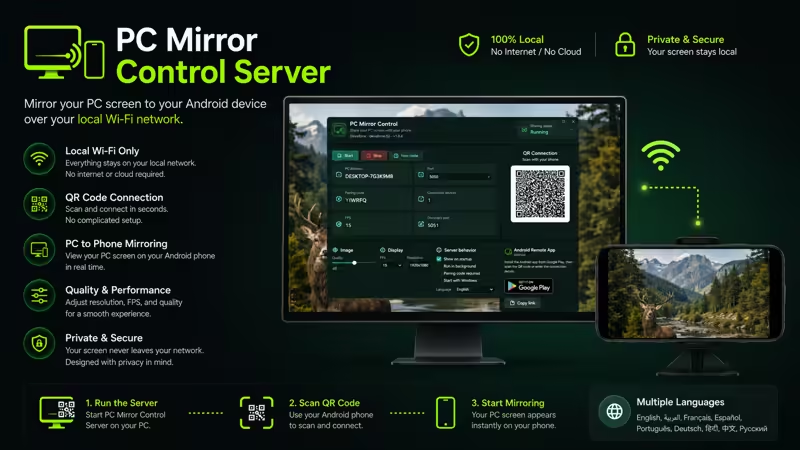
PC Mirror Control lets you view your Windows PC screen directly on your Android phone or tablet over the same local Wi-Fi / LAN network.

Install PC Mirror Control on Android, install PC Mirror Control Server on your Windows PC, connect using QR code or manual connection details, and start viewing your live PC screen on your phone.

PC Mirror Control is built for simple local screen mirroring. No cloud account. No complicated setup. No unnecessary remote-control features. Just a clean and practical way to mirror your Windows screen to Android.

KEY FEATURES

Live Windows Screen Viewing
View your Windows PC screen on your Android device through your local network.

Local Wi-Fi / LAN Connection
Your Android device and Windows PC connect over the same local Wi-Fi or LAN network.

QR Code Pairing
Scan the QR code shown in PC Mirror Control Server to connect quickly.

Manual Connection
Connect manually using the PC IP address, port, and pairing code shown by the Windows server.

Automatic Server Discovery
Find your PC server on the same local network when discovery is available.

Fullscreen Viewing Mode
Use fullscreen mode for a cleaner screen viewing experience.

Portrait and Landscape Support
View your PC screen in portrait or landscape orientation depending on your device and workflow.

Multiple Screen Fit Modes
Choose how the PC screen is displayed on your Android device.

Clean Dark Interface
Designed with a modern dark interface for a simple and focused viewing experience.

Privacy-Friendly Local Operation
Your screen stream stays on your local network. PC Mirror Control does not require a cloud account for screen transmission.

No Account Required
Use the app without creating an account or signing in.

HOW IT WORKS

  1. Install and run PC Mirror Control Server on your Windows PC.
  2. Open PC Mirror Control on your Android phone or tablet.
  3. Make sure both devices are connected to the same Wi-Fi or LAN.
  4. Connect using QR code, automatic discovery, or manual details.
  5. View your Windows PC screen on your Android device.

WINDOWS SERVER REQUIRED

PC Mirror Control requires the Windows companion app:

PC Mirror Control Server
Microsoft Store: https://apps.microsoft.com/detail/9PM0N62VVZLX

The server runs on your Windows PC, captures the screen locally, and streams it to the Android app through your local network.

PERFECT FOR

• Monitoring your PC from another room
• Following presentations from your phone
• Watching tutorials while away from your desk
• Demonstrations and training sessions
• Viewing desktop activity inside your home or office network
• Using your phone as a convenient secondary viewing screen
• Productivity and multi-screen workflows
• Educational and classroom environments

IMPORTANT

PC Mirror Control is focused on screen viewing and mirroring only.

It does not provide remote desktop control, keyboard input, mouse control, file transfer, or cloud streaming features.

REQUIREMENTS

• Android phone or tablet
• Windows PC with PC Mirror Control Server installed
• Phone and PC connected to the same local Wi-Fi or LAN
• Network permissions may be required depending on your Windows firewall and local network settings

PRIVACY NOTE

PC Mirror Control works through your local Wi-Fi / LAN network. Your screen stream remains inside your local network and does not require cloud-based screen transmission.

PC Mirror Control = Android screen viewing app
PC Mirror Control Server = Windows PC companion server

Mirror your Windows PC screen to your Android device with a simple, focused, and privacy-friendly local viewing experience.

App Details

Platform

Android

Availability

Google Play

Updates

Supported

Use Case

Productivity

Ready to Try This Android App?

Install the app from Google Play and start using it today.

Devallone Guide

Tutorial

Clean step-by-step guidance with a smoother reading experience.

PC Mirror Control Tutorial

PC Mirror Control lets you view your Windows PC screen on your Android phone or tablet over the same local Wi-Fi / LAN network. Follow these steps to install, connect, and start mirroring your screen.

STEP 1: Install PC Mirror Control Server on Windows

Before using the Android app, install the Windows companion server on your PC.

  1. Open Microsoft Store on your Windows PC.
  2. Search for PC Mirror Control Server.
  3. Install and open the server app.

Microsoft Store link:
https://apps.microsoft.com/detail/9PM0N62VVZLX

Keep PC Mirror Control Server running while using the Android app.

STEP 2: Install PC Mirror Control on Android

Install PC Mirror Control on your Android phone or tablet.

Google Play link:
https://play.google.com/store/apps/details?id=pcmirror.control.dvl

STEP 3: Connect Both Devices to the Same Network

Make sure your Android device and Windows PC are connected to the same local Wi-Fi or LAN network.

PC Mirror Control works locally, so both devices must be on the same network for discovery, pairing, and screen viewing.

STEP 4: Start the Windows Server

Open PC Mirror Control Server on your Windows PC.

The server screen may show:

• PC IP address
• Port
• Pairing code
• QR code
• Server status
• Connected device information
• Quality and performance options

Make sure the server is started before connecting from Android.

STEP 5: Connect from Android

Open PC Mirror Control on your Android device and choose a connection method.

QR Code Connection
Scan the QR code displayed by PC Mirror Control Server.

Automatic Discovery
Let the Android app search for the Windows server on the same local network.

Manual Connection
Enter the PC IP address, port, and pairing code shown in the Windows server app.

After connection, your Android device will display the live screen from your Windows PC.

STEP 6: Adjust the Viewing Mode

Use the available viewing options to match your screen and comfort.

You can use:

• Fullscreen mode
• Portrait orientation
• Landscape orientation
• Different screen fit modes

Choose the mode that works best for monitoring, presentations, tutorials, or secondary screen viewing.

TROUBLESHOOTING

If your phone cannot connect:

• Make sure both devices are on the same Wi-Fi or LAN
• Make sure PC Mirror Control Server is open and running
• Check that the IP address and port are correct
• Try QR code connection
• Try manual connection
• Allow the server through Windows Firewall if needed
• Restart the Android app and Windows server

If the screen does not appear correctly:

• Check the server quality or resolution settings
• Try another screen fit mode
• Rotate your phone between portrait and landscape
• Make sure your PC display is active
• Check that your local network connection is stable

IMPORTANT NOTE

PC Mirror Control is a screen mirroring and viewing app only. It does not control your PC keyboard, mouse, files, or remote desktop session.

PRIVACY NOTE

PC Mirror Control works through your local Wi-Fi / LAN network. It does not require an account or cloud-based screen transmission.

PC Mirror Control = Android screen viewing app
PC Mirror Control Server = Windows PC companion server