
Media Control

Control Windows media from your phone over local Wi-Fi.

App Screenshots

About This App

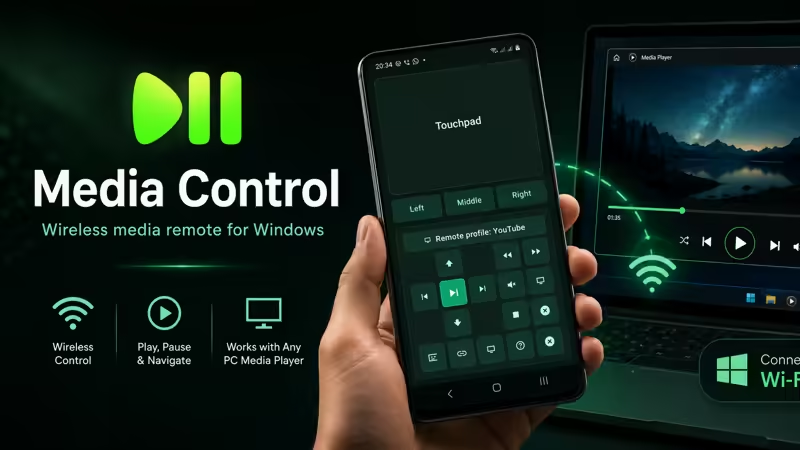
Media Control turns your Android phone or tablet into a wireless media remote for your Windows PC.

Control movies, music, videos, streaming pages, playlists, volume, playback, and media players from your phone using a simple local Wi-Fi / LAN connection.

Install Media Control on Android, install Media Control Server on your Windows PC, connect both devices on the same network, and start controlling your PC media from across the room.

No account. No cloud login. No complicated setup. Just practical Android-to-Windows media control over your local network.

KEY FEATURES

Wireless Android-to-Windows Media Control
Use your Android phone as a remote control for media playback on your Windows PC.

Local Wi-Fi / LAN Connection
Your phone and PC connect through the same local network for fast and direct control.

Easy Pairing
Connect using automatic discovery, QR code scanning, or manual IP address entry.

Media Playback Controls
Control play, pause, next, previous, rewind, forward, stop, fullscreen, subtitles, shuffle, repeat, playlist, library, and search actions where supported.

Volume Control
Adjust volume up, volume down, or mute your Windows PC directly from your phone.

Touchpad and Mouse Control
Use your phone as a touchpad with mouse movement, left click, right click, middle click, and scroll support.

Media Profiles
Use media profiles for common workflows such as VLC, YouTube, Spotify, Netflix, Windows Media, and a generic profile for standard media controls.

Privacy-Friendly Local Control
Commands are sent between your Android device and your Windows PC through your local Wi-Fi / LAN network.

No Account Required
Use the app without creating an account or signing in.

QR Code Connection
Scan the QR code shown in Media Control Server to connect quickly.

Clean Remote Interface
Built with a modern dark interface designed for simple everyday media control.

HOW IT WORKS

  1. Install Media Control on your Android phone or tablet.
  2. Install and run Media Control Server on your Windows PC.
  3. Make sure both devices are connected to the same Wi-Fi or LAN.
  4. Connect using auto discovery, QR code, or manual IP.
  5. Start controlling PC media from your phone.

WINDOWS SERVER REQUIRED

Media Control requires the Windows companion app:

Media Control Server
Microsoft Store: https://apps.microsoft.com/detail/9PB58MMBHQZZ

The server runs on your Windows PC, receives commands from the Android app, and helps execute media, volume, mouse, and playback actions.

USEFUL FOR

• Watching movies on your Windows PC
• Controlling YouTube from your phone
• Managing music playback from a distance
• Using your phone as a PC media remote
• Controlling VLC and other media players
• Adjusting volume without touching your keyboard
• Using a touchpad when your mouse is not nearby
• Controlling media from the sofa, desk, bed, classroom, or office

MEDIA PROFILE COMPATIBILITY

Media Control includes profiles for VLC, YouTube, Spotify, Netflix, Windows Media, and generic media controls.

Product names are used only to describe media profile compatibility. Media Control and Media Control Server are independent tools and are not affiliated with VLC, YouTube, Spotify, Netflix, Microsoft, or their owners.

REQUIREMENTS

• Android phone or tablet
• Windows PC with Media Control Server installed
• Phone and PC connected to the same local Wi-Fi or LAN
• Some actions may depend on the active app, website focus, Windows permissions, or system settings

PRIVACY NOTE

Media Control works over your local Wi-Fi / LAN network. It does not require an account, cloud service, or online login. Camera permission is used only for scanning the server QR code.

Media Control = Android remote app
Media Control Server = Windows PC companion server

Control your PC media from your phone with a clean, fast, and practical wireless remote experience.

App Details

Platform

Android

Availability

Google Play

Updates

Supported

Use Case

Productivity

Ready to Try This Android App?

Install the app from Google Play and start using it today.

Devallone Guide

Tutorial

Clean step-by-step guidance with a smoother reading experience.

Media Control Tutorial

Media Control lets you use your Android phone as a wireless media remote for your Windows PC. Follow these steps to install, connect, and start controlling your PC media.

STEP 1: Install Media Control Server on Windows

Before using the Android app, install the Windows companion app on your PC.

  1. Open Microsoft Store on your Windows PC.
  2. Search for Media Control Server.
  3. Install and open the server app.

Microsoft Store link:
https://apps.microsoft.com/detail/9PB58MMBHQZZ

Keep Media Control Server running while using the Android app.

STEP 2: Install Media Control on Android

Install Media Control on your Android phone or tablet.

Google Play link:
https://play.google.com/store/apps/details?id=media.control.dvl

STEP 3: Connect Your Phone and PC

Make sure your Android phone and Windows PC are connected to the same local Wi-Fi or LAN network.

Open Media Control on Android, then choose one of the connection methods.

Automatic Discovery
The app searches for Media Control Server on the same network.

QR Code
Open the QR code inside Media Control Server, then scan it from the Android app.

Manual IP
Enter the PC IP address shown inside Media Control Server.

After connecting, your phone becomes a wireless media remote for your Windows PC.

STEP 4: Choose a Media Profile

Media Control includes profiles for different media workflows.

Examples:

• VLC
• YouTube
• Spotify
• Netflix
• Windows Media
• Generic media controls

Choose the profile that matches what you want to control. Some buttons may work differently depending on the active app, browser page, or media player.

STEP 5: Control Playback

Use the media buttons on your phone to control playback.

Common controls include:

• Play / Pause
• Next
• Previous
• Rewind
• Forward
• Stop
• Fullscreen
• Subtitles where supported
• Shuffle where supported
• Repeat where supported
• Playlist or library actions where supported
• Search where supported

For best results, make sure the media app, video player, or browser tab is active on your Windows PC.

STEP 6: Control Volume

Use the volume controls in the Android app to manage PC audio.

You can:

• Increase volume
• Decrease volume
• Mute or unmute sound

STEP 7: Use Touchpad and Mouse Control

Media Control can also work as a simple touchpad for your Windows PC.

Supported controls include:

• Mouse movement
• Left click
• Right click
• Middle click
• Scroll

This is useful when your keyboard or mouse is not nearby.

TROUBLESHOOTING

If your phone cannot find the PC:

• Make sure both devices are on the same Wi-Fi or LAN
• Make sure Media Control Server is open on Windows
• Check that Windows Firewall allows the server connection
• Try QR code pairing
• Try manual IP connection
• Restart the Android app and Windows server

If media buttons do not work:

• Make sure the target media app or browser tab is active
• Some websites or apps may not support every command
• Try switching to the Generic media profile
• Check that your keyboard media keys work on Windows
• Some actions depend on app focus, player support, or Windows settings

PRIVACY NOTE

Media Control works through your local Wi-Fi / LAN network. It does not require an account or cloud login. Camera permission is used only for scanning the server QR code.

Media Control = Android phone remote app
Media Control Server = Windows PC companion server