
Custom Remote Control for PC – Devallone.fyi

Custom Remote Control for PC

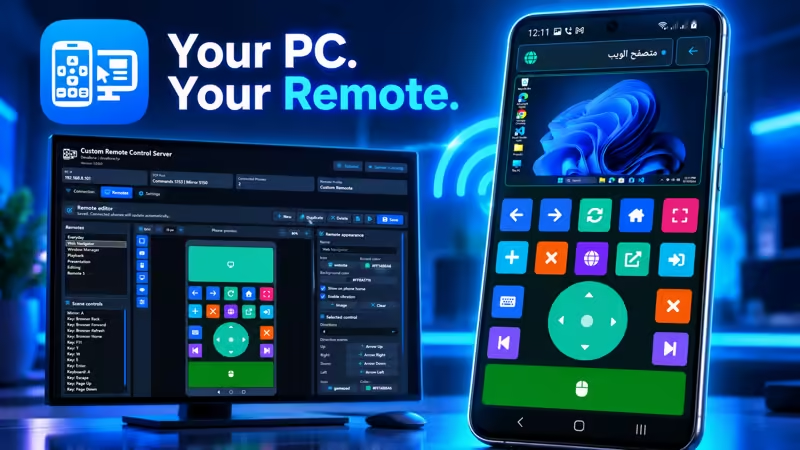
Custom Remote Control for PC turns your Android phone or tablet into a personalized Windows remote. Use custom mouse, keyboard, screen mirror, joystick and shortcut controls from layouts created on the Windows server and synchronized automatically over your local network.

App Screenshots

About This App

Custom Remote Control for PC

Custom Remote Control for PC turns your Android phone or tablet into a personalized remote control for Windows 10 and Windows 11.

Control the mouse, type with your Android keyboard, view the computer screen, use directional joysticks and execute custom keyboard shortcuts from remote layouts created with Custom Remote Control Server.

Your Remote, Designed Your Way

Unlike applications limited to fixed control layouts, Custom Remote Control for PC receives personalized remotes created on the Windows server. Every remote can have its own controls, colors, icons, sizes, positions and actions.

Create or update a remote on the computer, press Save and the latest version is automatically synchronized with the connected Android device.

الميزات الرئيسية

  • Control Windows from an Android phone or tablet.
  • Use multiple personalized remote layouts.
  • Move the Windows pointer with a touchpad control.
  • Perform left-click and right-click actions.
  • Scroll using two fingers.
  • Open the Android keyboard and type on the PC.
  • View the Windows screen inside a remote.
  • Use four-direction and eight-direction joysticks.
  • Execute keyboard keys and shortcut combinations.
  • Control playback and system volume.
  • Open websites, applications, files and folders.
  • Receive remote updates automatically from the server.
  • Connect using automatic discovery, QR code or manual IP address.
  • Use the interface in multiple languages.

Custom Remote Layouts

Remote layouts are created using the visual editor included with Custom Remote Control Server for Windows. The Android app accurately reproduces the layout designed on the computer.

A remote can combine several control types on the same screen:

  • Keys: Buttons for keyboard shortcuts and Windows actions.
  • Keyboard: Opens the phone keyboard for typing on the PC.
  • Mouse: Provides touchpad movement, clicking and scrolling.
  • Mirror: Displays the Windows screen inside the remote.
  • Joystick: Provides four-direction or eight-direction control.

Mouse Touchpad

Add a mouse area to any remote and use the phone screen as a Windows touchpad.

  • Move one finger to control the pointer.
  • Tap to perform a left click.
  • Long-press to perform a right click.
  • Move two fingers vertically to scroll.
  • Adjust pointer and scrolling speed from the Windows server.

Android Keyboard Input

A Keyboard control opens the Android software keyboard directly over the remote. Text and supported key commands are sent to the connected Windows computer.

This is useful for writing messages, entering addresses, searching, completing forms or typing inside Windows applications without sitting at the computer.

Screen Mirroring

A Mirror control shows a live view of the Windows desktop inside the selected remote. Screen viewing can be combined with touchpad, keyboard, joystick and shortcut controls on one screen.

The mirror system is optimized for compact remote layouts. The server provides adjustable resolution, quality and frame-rate settings to balance image clarity and responsiveness.

Custom Keys and Shortcuts

Buttons created on the server can execute different actions from the Android remote:

  • Individual keyboard keys.
  • Shortcuts using Ctrl, Shift, Alt or the Windows key.
  • Predefined text.
  • Media playback commands.
  • Volume commands.
  • Mouse-button actions.
  • Website links.
  • Windows applications, files and folders.

التحكم بذراع الألعاب

Use a four-direction or eight-direction joystick for navigation, presentations, media interfaces, games and applications that respond to Windows arrow keys.

The joystick supports diagonal input in eight-direction mode and releases active directions when your finger leaves the control.

Included Starter Remotes

The app includes professionally organized starter layouts that demonstrate different ways to combine controls:

  • Everyday: Common Windows controls, shortcuts, mouse and mirror.
  • Web Navigator: Browser navigation, tabs, searching and typing.
  • Window Manager: Window navigation, desktop viewing and common shortcuts.
  • Playback: Media playback and volume controls.
  • Presentation: Slide navigation and presentation shortcuts.
  • Editing: Frequently used editing and productivity commands.

Starter layouts can be modified, duplicated, replaced or removed from the Windows server.

Automatic Remote Synchronization

The Windows server is the central location for creating and managing remote layouts. The Android app automatically checks the connected server for updates.

  • Edit a remote on the Windows computer.
  • Save the updated layout.
  • The Android app downloads the latest remote catalog.
  • A message informs the user when remotes have been updated.

The mobile app focuses on using remotes efficiently. Layout creation and editing are handled on the larger Windows screen.

Easy Connection Options

  • Automatic discovery: Finds available servers on the same local network.
  • QR connection: Scans the QR code displayed by the Windows server.
  • Manual connection: Connects using the computer IP address and pairing information.

The phone and computer must normally be connected to the same Wi-Fi or local network.

Consistent Layout Direction

Custom remotes keep the direction and control positions defined by their creator. Switching the interface to Arabic or another RTL language does not reverse the remote canvas or change control positions.

Multilingual Interface

The app supports multiple interface languages, including English, Arabic, German, Spanish, French, Hindi, Portuguese, Russian and Chinese.

Remote names and brand names remain unchanged, while application descriptions, connection messages, settings and instructions are localized.

Local Network Privacy

  • No user account is required.
  • No cloud connection is required for remote control.
  • Commands are sent over the local network.
  • Pairing information helps prevent unintended connections.
  • The Windows server can restrict keyboard, text, website and file actions.

Requirements

  • An Android phone or tablet.
  • A computer running Windows 10 or Windows 11.
  • Custom Remote Control Server installed on the computer.
  • Both devices connected to the same local network.
  • Windows Firewall permission for the server on private networks.

Download

Create personalized remotes on Windows and control your computer comfortably from Android.

App Details

Platform

Android

Availability

Google Play

Updates

Supported

Use Case

Productivity

Ready to Try This Android App?

ثبّت التطبيق من Google Play وابدأ استخدامه اليوم.

Devallone Guide

Tutorial

Clean step-by-step guidance with a smoother reading experience.

How to Use Custom Remote Control for PC on Android

This tutorial explains how to install Custom Remote Control for PC, connect it to the Windows server and use personalized mouse, keyboard, mirror, joystick and shortcut controls.

1. Install the Android App

  1. Open Custom Remote Control for PC on Google Play.
  2. Install the app on your Android phone or tablet.
  3. Open the app and select your preferred language.
  4. Review and accept the privacy information.

2. Install the Windows Server

  1. Open the Custom Remote Control Server Microsoft Store page.
  2. Install the server on your Windows 10 or Windows 11 computer.
  3. Open Custom Remote Control Server.
  4. Allow access through Windows Firewall when requested.
  5. Confirm that the server status says Server running.

3. Prepare the Connection

  • Connect the phone and computer to the same Wi-Fi network.
  • Keep the Windows server open or running in the background.
  • Use a Private Windows network profile when possible.
  • Temporarily disable a VPN if it prevents local-device discovery.

4. Connect Automatically

  1. Open the Connection screen in the Android app.
  2. Wait while the app searches for nearby servers.
  3. Tap the computer running Custom Remote Control Server.
  4. Wait for the connection confirmation.

The app uses UDP port 5152 to discover servers on the local network.

5. Connect with the QR Code

  1. Open the Connection tab on the Windows server.
  2. Locate the QR Connect code.
  3. Open the QR scanner in the Android app.
  4. Allow camera permission if requested.
  5. Point the phone camera at the server QR code.
  6. Confirm the detected server.

6. Connect Manually

  1. Find the PC IP address displayed by the Windows server.
  2. Open manual connection in the Android app.
  3. Enter the PC IP address.
  4. Enter the command port and pairing information if requested.
  5. Press Connect.

The command service normally uses TCP port 5153. Screen mirroring uses TCP port 5150.

7. Open a Remote

After connecting, the app displays the remote layouts available from the server in a compact three-column home grid.

  1. Find the remote you want to use.
  2. Tap its icon or name.
  3. The complete remote opens using the layout created on the server.
  4. Use the back button to return to the remote list.

8. Use a Mouse Control

  • Move one finger inside the mouse area to move the Windows pointer.
  • Tap once to perform a left click.
  • Long-press to perform a right click.
  • Move two fingers vertically to scroll.

Pointer and scrolling speed are controlled from the Mouse settings section on the Windows server.

9. Use the Android Keyboard

  1. Tap a Keyboard control inside the remote.
  2. The Android software keyboard appears.
  3. Type normally to send text to the Windows computer.
  4. Use supported special keys and shortcut controls when required.
  5. Close the keyboard to return to the complete remote.

10. Use Screen Mirroring

If the remote contains a Mirror control, the app connects to the mirror service automatically and displays the Windows screen inside that control.

  • The Mirror control can be used beside mouse and keyboard controls.
  • The latest available frame is displayed without queuing outdated frames.
  • Image decoding runs separately from mouse input.
  • Mirror quality, resolution and FPS are configured on the Windows server.

For responsive mouse control, use 640×360 resolution, 10 FPS and approximately 50% JPEG quality.

11. Use Custom Keys

Tap a custom key to execute the action assigned by the remote creator. Depending on its configuration, a key can:

  • Send a keyboard key.
  • Execute a keyboard shortcut.
  • Type predefined text.
  • Control playback or volume.
  • Perform a mouse click.
  • Open a website.
  • Open an application, file or folder on Windows.

A small indicator appears on keys configured with toggle behavior.

12. Use a Joystick

  1. Place your finger inside the joystick control.
  2. Move toward the desired direction.
  3. Use diagonal positions when the joystick supports eight directions.
  4. Release your finger to release all active direction keys.

13. Receive Updated Remotes

Remote layouts are edited and saved on Custom Remote Control Server. The Android app automatically checks the connected server for changes.

  1. Edit the remote on the Windows server.
  2. Press Save.
  3. Keep the Android app connected.
  4. Wait briefly for synchronization.
  5. The app displays a message when remotes have been updated.
  6. Reopen the remote to use the latest layout.

14. Change the App Language

  1. Open Settings in the Android app.
  2. Select Language.
  3. Choose the preferred interface language.

Changing to an RTL language does not reverse custom remote layouts. Control positions stay exactly as they were designed.

15. Troubleshooting Connection Problems

The computer is not discovered

  • Confirm that the server is running.
  • Connect both devices to the same Wi-Fi network.
  • Use a Private Windows network profile.
  • Allow the server through Windows Firewall.
  • Disable VPN connections temporarily.
  • Try QR or manual IP connection.

The app connects but remotes do not appear

  • Open the Remotes tab on the Windows server.
  • Confirm that remote profiles exist.
  • Press Save on the server.
  • Reconnect the Android app.

The mirror does not appear

  • Confirm that the selected remote contains a Mirror control.
  • Check that TCP port 5150 is allowed.
  • Restart the Windows server.
  • Reconnect the Android app.

The mouse becomes slow while mirroring

  • Use 640×360 or 426×240 mirror resolution.
  • Use 10 FPS or 5 FPS on slower networks.
  • Reduce JPEG quality to approximately 45–50%.
  • Move closer to the Wi-Fi router.
  • Avoid isolated or heavily congested guest networks.

Privacy and Safety

The remote connection is designed for use on a local network. No account is required. Only connect to computers and networks you trust.

The Windows server can independently allow or block keyboard input, text entry, website opening and file or folder launching.

Useful Links