
Mouse AIO – PC Remote Control – Devallone.fyi

Mouse AIO – PC Remote Control

Turn your Android device into a complete Windows PC remote with wireless mouse, keyboard, media controls, screen mirroring, desktop access, presentations, and customizable remotes.

App Screenshots

About This App

Mouse AIO – PC Remote Control for Android

Mouse AIO – PC Remote Control turns your Android phone or tablet into a complete wireless controller for your Windows PC. Use your device as a touchpad, keyboard, media controller, screen viewer, desktop browser, presentation remote, or personalized control panel.

Connect through your local network using automatic discovery, QR scanning, or manual connection. No Mouse AIO account is required.

Everything You Need in One Application

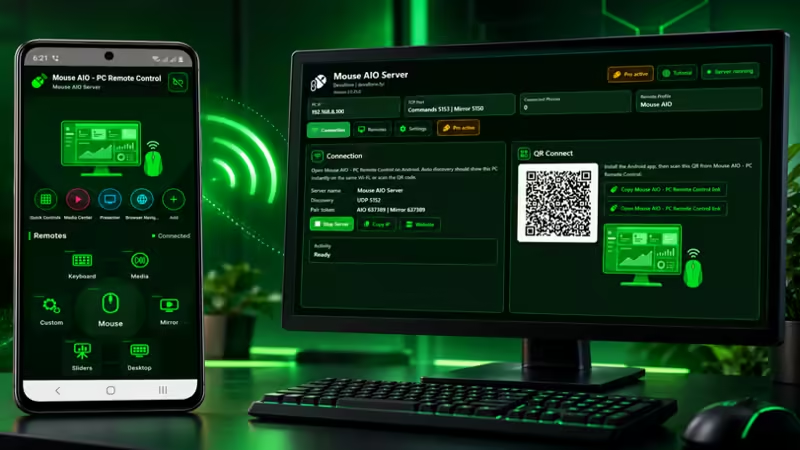
Mouse AIO organizes seven purpose-built remotes in a single consistent interface. Open the remote you need without installing several separate applications.

  • Mouse: Control the pointer, click, drag, scroll, and adjust touchpad sensitivity.
  • Keyboard: Type multilingual text and use navigation keys, special keys, and shortcuts.
  • Media: Control playback, navigation, volume, mute, fullscreen, subtitles, and supported media features.
  • Mirror: View your Windows screen on Android in portrait or landscape orientation.
  • Desktop: Browse desktop items, launch applications, open folders, and manage active windows.
  • Sliders: Navigate presentations and use supported presenter, pointer, ink, and display tools.
  • Custom: Build personalized remotes with your own controls, colors, icons, images, and actions.

Precision Mouse and Touchpad

Use one-finger movement, tapping, double-tap and hold, two-finger scrolling, right-click gestures, and middle-click gestures. Select portrait, landscape, or automatic orientation depending on how you prefer to control your PC.

Wireless PC Keyboard

Type directly on your Windows computer from Android. Use standard typing, multilingual text, arrow keys, Enter, Escape, Tab, Space, Backspace, navigation commands, and supported shortcuts. Optional vibration provides feedback when keyboard controls are pressed.

Media Remote

Control VLC, YouTube, Spotify, Windows Media, Netflix, and generic media applications. Available commands include play, pause, stop, previous, next, rewind, forward, volume, mute, repeat, shuffle, fullscreen, subtitles, search, and theater mode. Available actions depend on the selected profile.

Live PC Screen Mirroring

Stream the Windows display to your Android device through the local network. View the screen in portrait or landscape mode, enter fullscreen, and monitor the current streaming frame rate. Stream quality, resolution, and FPS are configured from Mouse AIO Server.

Desktop Remote

Browse desktop applications, files, folders, shortcuts, Start menu applications, and active windows. Open items remotely or focus, minimize, and close windows using the Android interface. Choose between grid and list layouts for easier navigation.

Presentation and Sliders Remote

Control PowerPoint, Google Slides, LibreOffice Impress, WPS Presentation, Canva, and generic presentations. Navigate slides, start from the beginning or current slide, open presenter tools, blank the screen, use fullscreen, and access supported pointer and annotation controls.

Custom Remote Builder

Create reusable remote profiles designed around your workflow. Add keyboard keys, mouse areas, PC screen panels, media controls, typed text, websites, files, and folders. Move and resize controls with the visual editor, select square or rounded buttons, assign icons and colors, and choose a background color or image.

  • Create, rename, duplicate, save, and delete profiles.
  • Start with included example layouts.
  • Use undo and redo while editing.
  • Show or hide the alignment grid.
  • Pin up to five custom remotes to the home screen.

Multiple Ways to Connect

  • Automatic discovery: Find Mouse AIO Server on the same network.
  • QR connection: Scan the QR code displayed by the Windows server.
  • Manual connection: Enter the PC address, port, and pairing token.

Privacy and Local Control

Remote commands and screen streaming operate through the local network. No Mouse AIO account is required. Camera permission is requested only when you choose to scan a QR connection code.

Requirements

  • An Android phone or tablet.
  • A PC running Windows 10 or Windows 11.
  • Mouse AIO Server installed and running on Windows.
  • Both devices connected to the same Wi-Fi or local network.

Mouse and Keyboard are included. Advanced remotes require Mouse AIO Server Pro. Pro is managed through the Windows server, and individual remote modules can be enabled or disabled by the PC user.

Help and Privacy

App Details

Platform

Android

Availability

Google Play

Updates

Supported

Use Case

Productivity

Ready to Try This Android App?

ثبّت التطبيق من Google Play وابدأ استخدامه اليوم.

Devallone Guide

Tutorial

Clean step-by-step guidance with a smoother reading experience.

How to Use Mouse AIO – PC Remote Control

This tutorial explains how to install Mouse AIO, connect it to Windows, use every remote, create custom controls, and solve common connection problems.

Step 1: Install Both Applications

  1. Install Mouse AIO – PC Remote Control on your Android device.
  2. Install Mouse AIO Server from Microsoft Store on Windows.
  3. Open Mouse AIO Server and allow private-network access if Windows Firewall asks for permission.
  4. Keep the server running while using the Android application.

Step 2: Select the Application Language

On the first launch, choose your preferred language. You can change it later by tapping the language button on the connection page. Selecting System language makes Mouse AIO follow the Android language when supported.

Step 3: Connect the Phone and PC

Connect both devices to the same Wi-Fi or local network. The PC may use Ethernet as long as it is connected to the same router.

Automatic Connection

  1. Open Mouse AIO Server on Windows.
  2. Tap Find My PC or Refresh on Android.
  3. Select the detected PC.
  4. Wait for the connected status to appear.

QR Connection

  1. Open the QR Connect panel in Mouse AIO Server.
  2. Tap QR on Android.
  3. Allow camera access.
  4. Place the server QR code inside the scanning frame.
  5. Wait for the connection to complete.

Manual Connection

  1. Tap Manual on Android.
  2. Enter a server name.
  3. Enter the PC IP address displayed by Mouse AIO Server.
  4. Enter the command port and pairing token.
  5. Tap Connect.

Step 4: Understand Remote Status

  • Available: The remote is ready to open.
  • Off: Open the Remotes tab on Mouse AIO Server and enable that module.
  • Locked: The remote requires Mouse AIO Server Pro.
  • Unavailable: Update the Android app and Windows server, then reconnect.

Using the Mouse Remote

  • Move one finger to control the pointer.
  • Tap for a left click.
  • Double-tap and hold to select or drag.
  • Tap with two fingers for a right click.
  • Drag with two fingers to scroll.
  • Tap with three fingers for a middle click.

Use the orientation control to choose Portrait, Landscape, or Auto. The optional screen preview is disabled in landscape mouse mode so the full display area remains available for touchpad control.

Using the Keyboard Remote

Tap the text field to open the Android keyboard, then type normally. Use the displayed keys for arrows, Enter, Escape, Tab, Space, Backspace, modifiers, and supported shortcuts. Open Keyboard settings to enable or disable key vibration.

Using the Media Remote

  1. Open the Media remote.
  2. Select the profile matching your media application.
  3. Use playback, navigation, volume, mute, fullscreen, subtitle, and other available controls.

Some controls depend on the selected profile and the application currently active on Windows.

Using PC Mirror

  1. Confirm that PC Mirror is enabled on Mouse AIO Server.
  2. Open the Mirror remote.
  3. Wait for the Windows screen stream to start.
  4. Use the orientation control to select portrait, landscape, or automatic rotation.
  5. Use fullscreen when you need a larger screen view.

If streaming is slow, reduce the resolution, JPEG quality, or frame rate from the Mirror settings in Mouse AIO Server.

Using Desktop Remote

Use the Apps, Desktop, Folder, and Windows views to browse available items. Tap an application or item to open it. Use window controls to focus, minimize, or close supported windows. Switch between grid and list mode using the view button.

Using Sliders and Presentation Controls

  1. Open your presentation on Windows.
  2. Open the Sliders remote on Android.
  3. Select PowerPoint, Google Slides, LibreOffice Impress, WPS Presentation, Canva, or Generic.
  4. Start the presentation and use the navigation controls.
  5. Use pointer, annotation, blank-screen, fullscreen, notes, or caption controls where supported.

Creating a Custom Remote

  1. Open Custom from the Remotes page.
  2. Create a new profile or select an example layout.
  3. Enter a profile name and choose its icon and color.
  4. Add a keyboard key, mouse area, mirror panel, or action button.
  5. Assign an event such as a keyboard command, mouse button, media action, text, website, file, or folder.
  6. Move and resize the control on the editor grid.
  7. Choose a square or rounded shape, icon, and color.
  8. Select a background color or background image for the remote.
  9. Save the profile and finish editing.

Adding Custom Remotes to the Home Screen

  1. Open the custom remote profile settings and enable Show on home, or tap the add button in the home-shortcuts area.
  2. Select the profiles you want to display.
  3. Save the selection.

You can display up to five custom remote shortcuts on the main page.

استكشاف الأخطاء

  • No PC found: Confirm both devices use the same network, disable VPN temporarily, check Windows Firewall, and tap Refresh.
  • Remote is off: Enable it from the Remotes tab in Mouse AIO Server.
  • Remote is locked: Activate or restore Mouse AIO Server Pro on Windows.
  • Commands do not work: Check the corresponding permission in the server settings.
  • Mirror is slow: Reduce resolution, quality, or FPS on the server.
  • Connection drops: Check Wi-Fi strength, keep the server running, and reconnect.

Privacy and Help

Mouse AIO communicates through your local network and does not require an account. Camera access is used only for QR scanning.